Resource access policy
This lab demonstrates how administrators can enable Data access enforcement on a PostgreSQL resource. In addition you will define an Access policy for limiting SQL queries on tables, columns/rows.
Lab Requirements
This lab demonstrates how to enable data access enforcement via an access policy for a PostgreSQL database Resource. To support the example, download the CSV example and import it into your PostgreSQL database.
electronic_products.csvSet up a table in PostgreSQL
To begin, use PGAdmin to create a table called electronic_products.
CREATE TABLE public.electronic_products (
  id integer PRIMARY KEY,
  product_id text NOT NULL UNIQUE,
  product_name text NOT NULL,
  category text NOT NULL,
  sku text NOT NULL UNIQUE,
  unit_msrp_usd numeric(10,2) NOT NULL CHECK (unit_msrp_usd >= 0),
  launch_date date NOT NULL,
  is_active boolean NOT NULL DEFAULT true
);
Once the table is created:
- Import/Export Data, set the toggle to Import
- Pick the CSV provided above
- Format csv
- Encoding UTF8
- Options tab, enable Header
PostgreSQL Resource Setup
To create a PostgreSQL Resource, perform the following actions.
- Select Resources > Create resource > PostgreSQL
- A form requesting connection details to create the resource is displayed; provide a name and description.
- In this example, you can provide:
- Host - provided by PostgreSQL
- Port - using default (5432)
- Database name - User-provided
- Authentication - User and password
- SSL/TLS - Enabled
Enable Data Access Enforcement
Access policies are enabled by default on cloud instances. On self-hosted instances, navigate to Settings > Beta and toggle on the feature flag for Enforce data security using access policies.
Once the resource has been created, a Retool administrator can access the PostgreSQL resource and select the Access enforcement (Beta) tab.
Access Policy
Access enforcement is a mechanism Retool Administrators can use to identify which groups and policy(s) are employed to support table, column, and row permissions. This is captured via a policy that consists of:
- Policy assignment (Apply to or Except)
- User(s) or Group(s) provided or denied access
- Policy Rules
- Tables
- Column Access
- Row Filter
- Environment(s)
Policy Definition
The Retool administrator will define the policy by accessing the resource.
- Select the Access tab. This will display the policy editor.
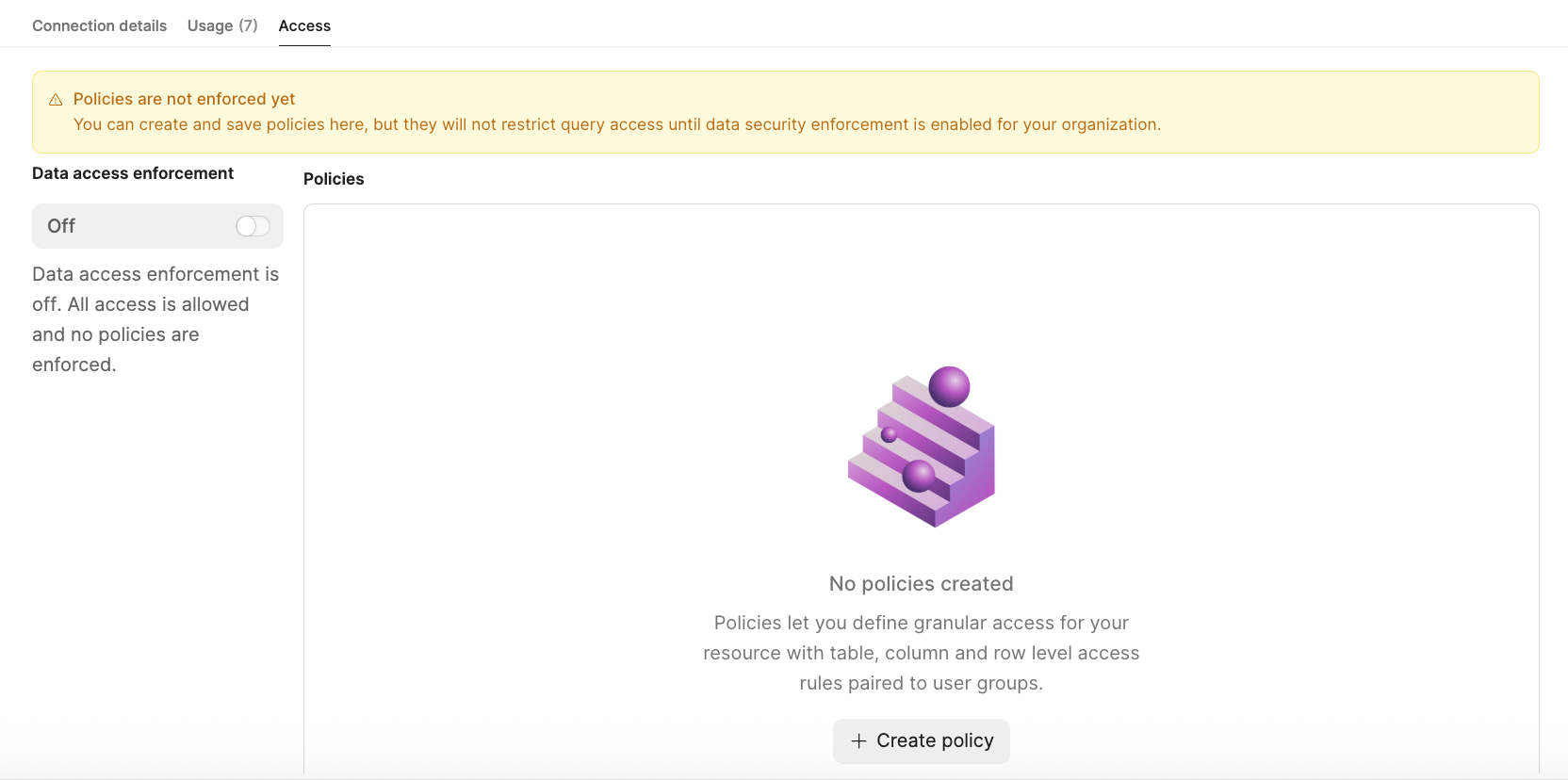
- Select + Create policy. This will ask you to enable Data access enforcement.
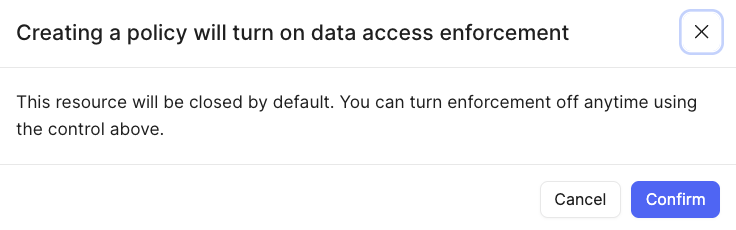
The Policy editor starts with requesting (1) Policy assignment: who does this policy Apply to or Except.
Except allows you to specify one or more groups where this policy doesn't apply.
- In the search box, enter the group name(s), for example, admin.
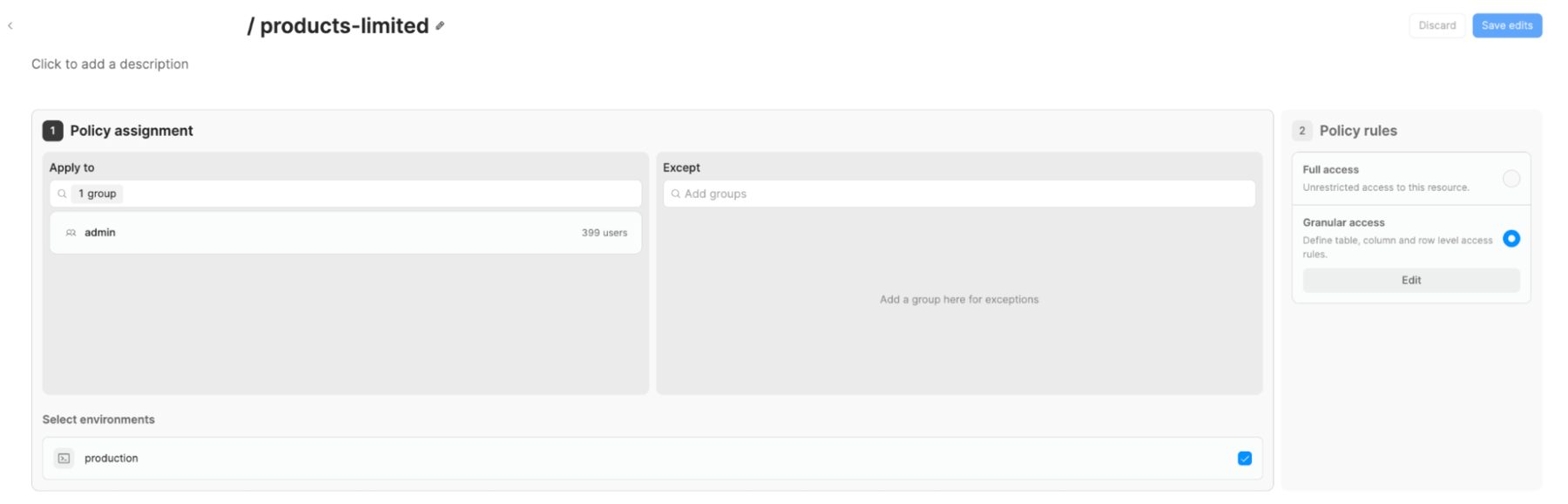
- Next, you move to (2) Policy rules. Specify whether the Policy rules will provide Full access or Partial access to existing tables in the resource.
- For this example, select Partial access.
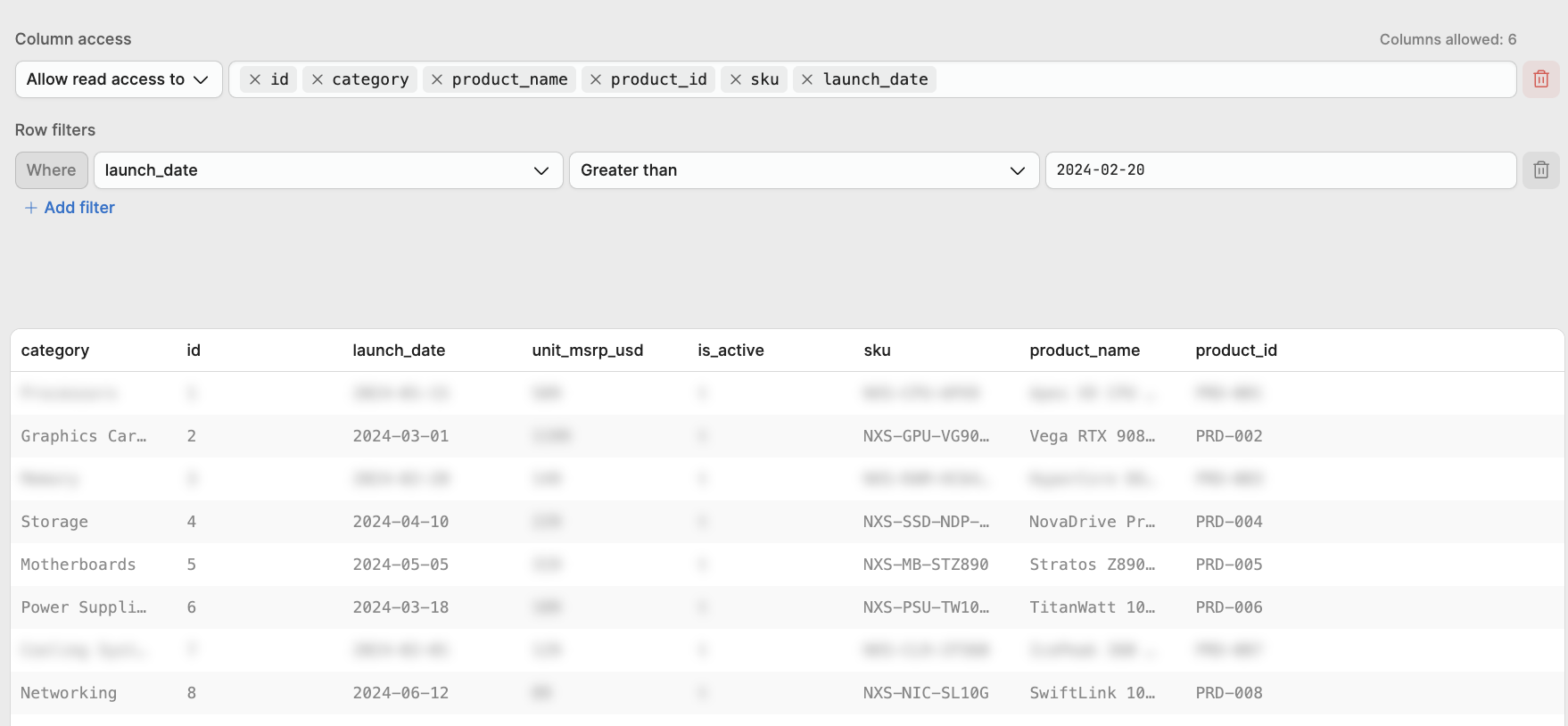
- Within the (2) Policy rules, select the table of interest,
electronic_products. - Next, for Column access, specify
id,category,product_name,product_id, andsku.
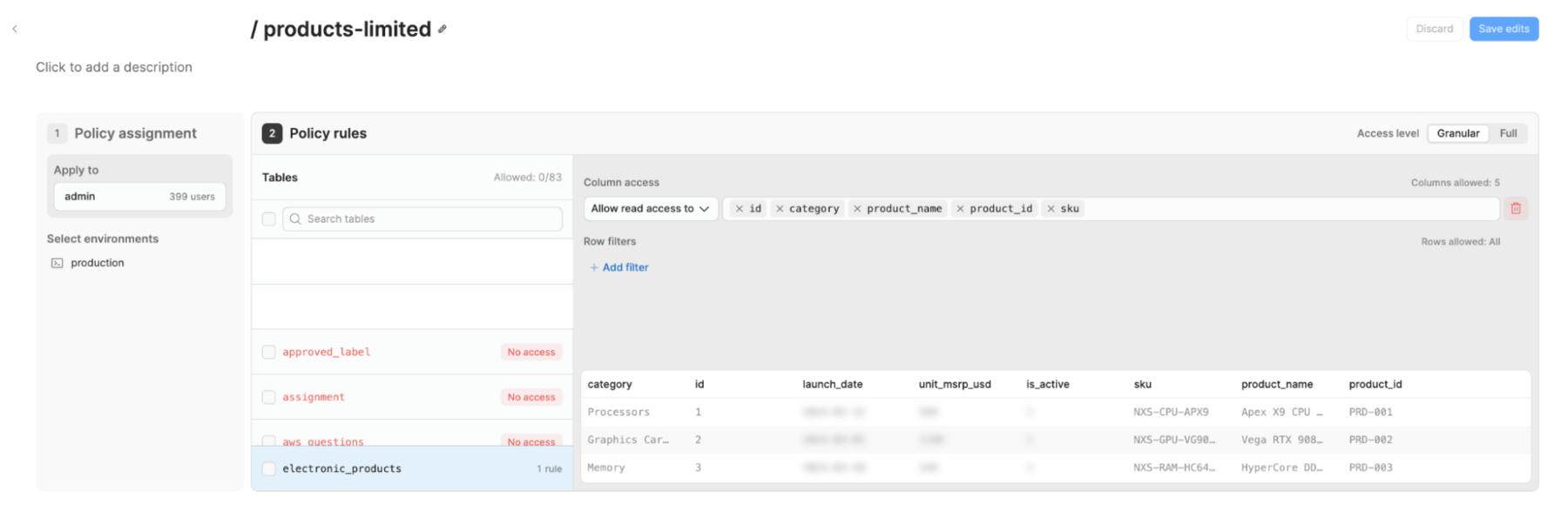
- Next, we can specify under Row filters > + Add filter, Where,
launch_date,Greater than,2024-02-02. The following image shows the final configuration.
Save and Activate Policy
With the policy defined, let’s save it and make it active.
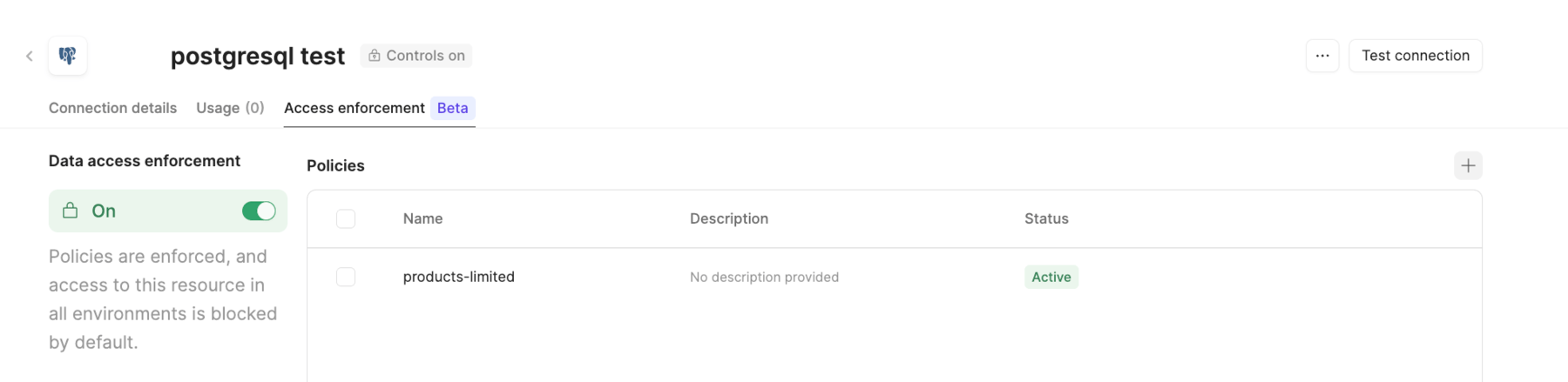
- Select Save edits
- This brings you back the main Access enforcement screen. Select Save changes. This will remove the
Drafttag. - Select … > Activate, to make the policy active and remove the
Inactivetag.
Test Policy
Now that you have created and applied a policy, a user, whether in the permitted group or not, can determine whether they can develop queries against the resource. You will test both a failure example and a success example leveraging Query Library.
Query Library
- Select Query Library > New
- Provide the query a name and proceed to the Failure test.
Failure test
To test the policy, you can use a SELECT statement returning all columns.
select * from electronic_products;
This will display an error, Query blocked by data access security policy, as shown in the following image.
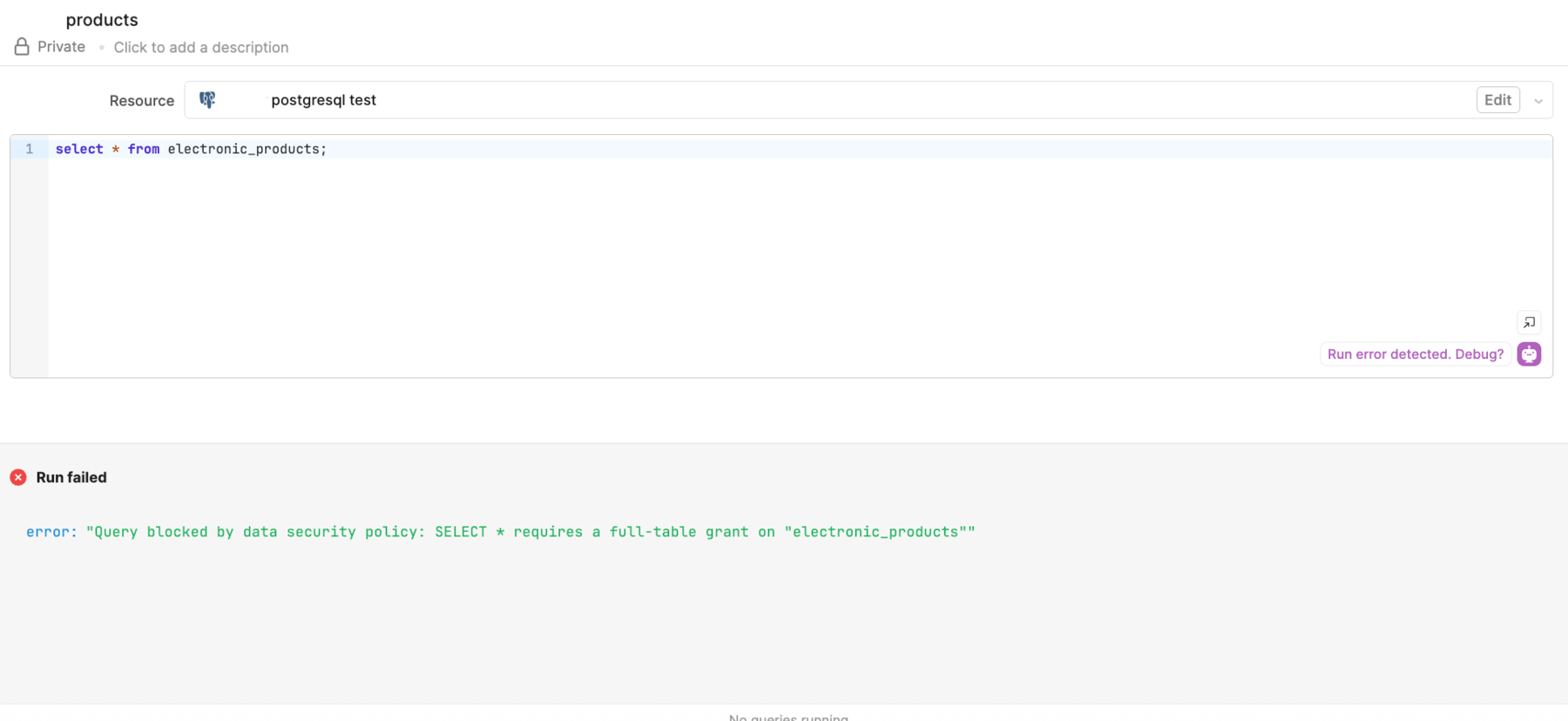
With the access specified, not all the columns are enabled, and this causes the error provided.
Success test
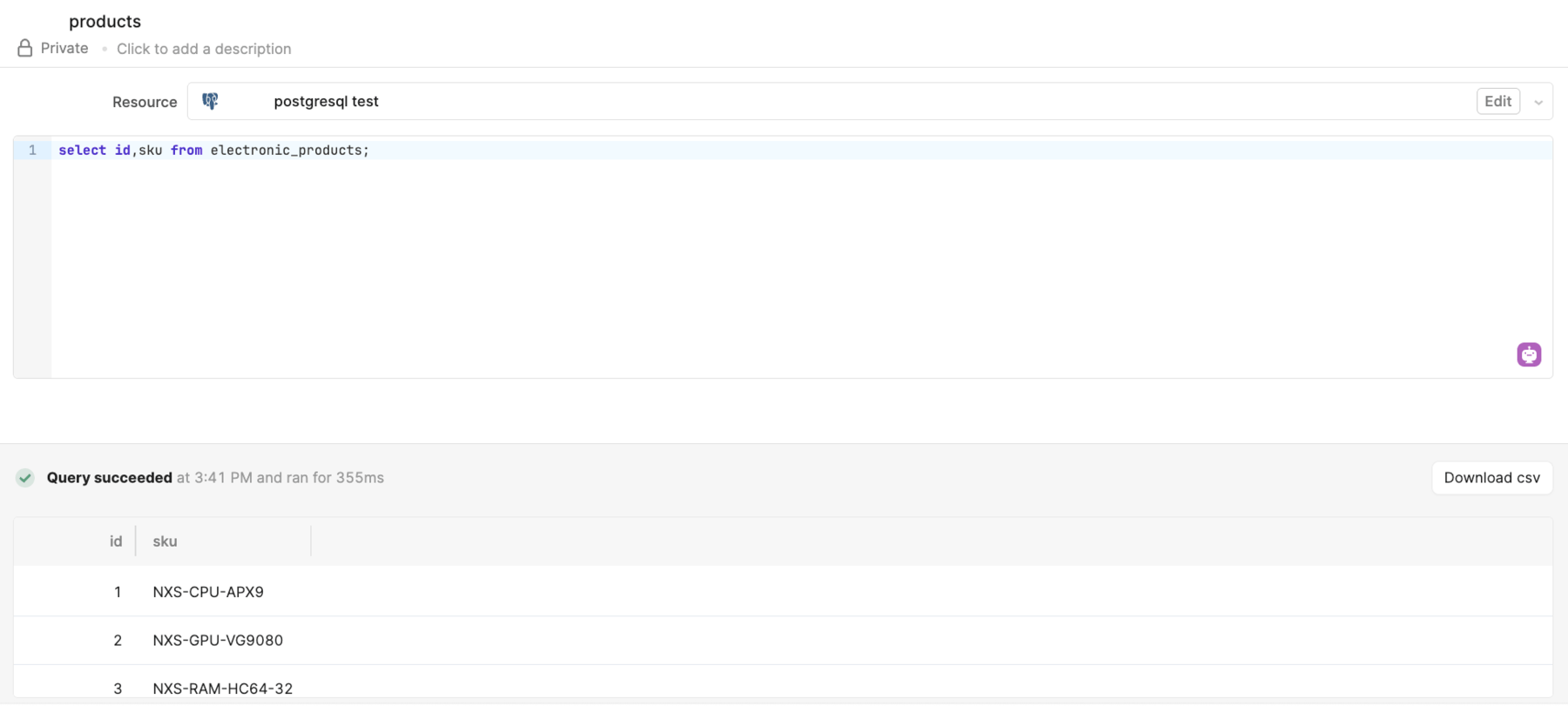
If we narrow the SELECT to the granted columns, we will see a successful result.
select id,sku from electronic_products;
Summary
The lab demonstrates the new capability, data access enforcement, and how you can employ it to further govern what a group of users can or cannot do in a PostgreSQL Resource.