Object Roles
This lab demonstrates how to leverage Object roles to create roles that grant Use, Edit, or Own access to apps, resources, workflows, and agents, either universally across all objects or scoped to specific objects and folders. Roles can be combined with existing Direct access-defined groups where the permissions are additive.
Lab Requirements
This lab demonstrates the Object roles introduced in v4.X + (Cloud) and requires that you have an administrator user to execute the lab.
Steps
Create Object role
First, you need to create an Object role.
- Select Settings > Permissions > Roles > Create role > Create Object role
- Provide the Role name and description
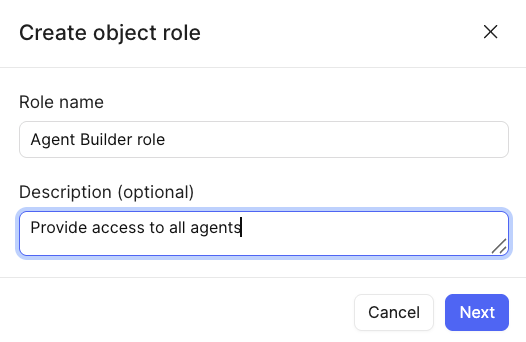
- Select Next
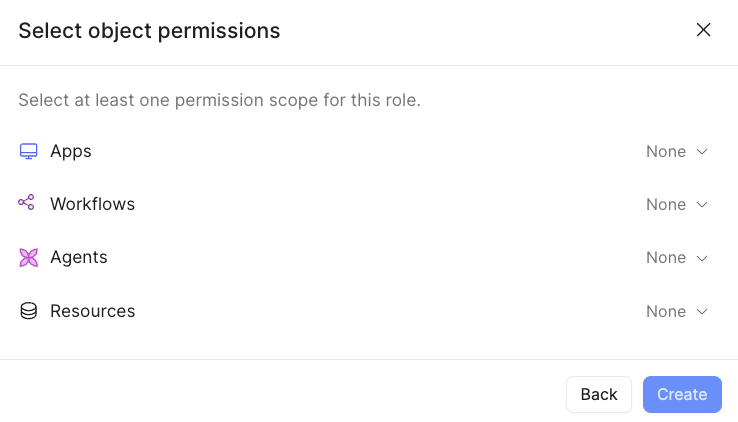
- Select Agents and specify Edit and Apply universally
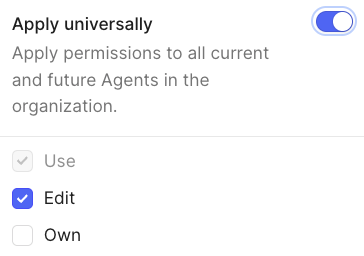
- Once specified, the object role will display: universal access to edit all agents.
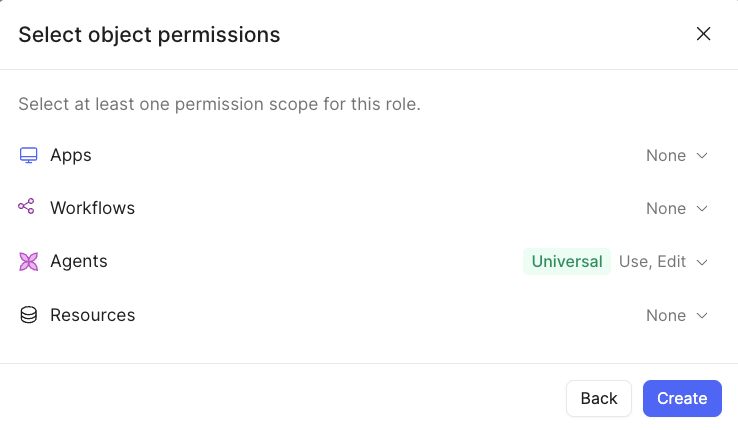
Apply Object role
Once the object role, Agent Builder role, has been created, we can then apply the role to a new or existing group.
This section will leverage a group called Agent Builder group; however, you can select any group that you have created.
- Select Settings > Permissions > Groups > Agent Builder

- Select Add object. The Select roles dialog will appear.
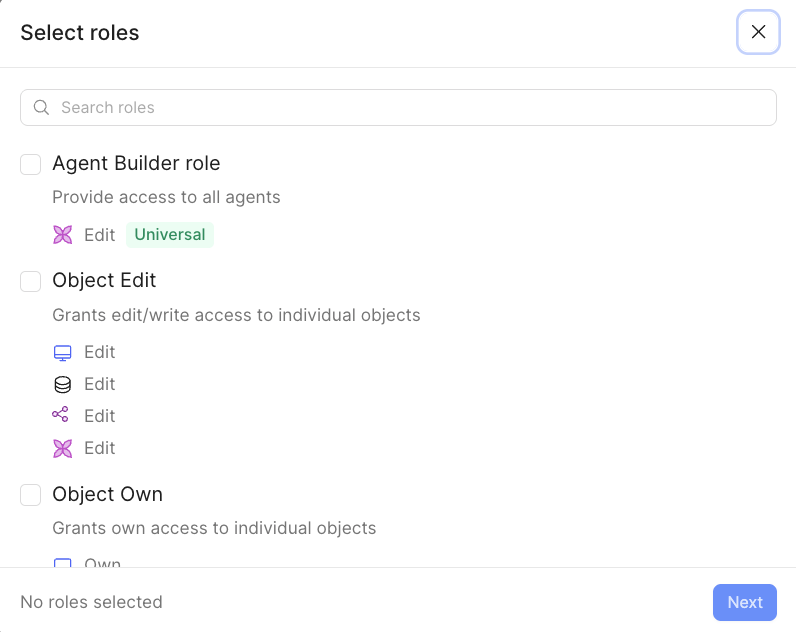
- Select the Agent Builder role as shown in the following image.
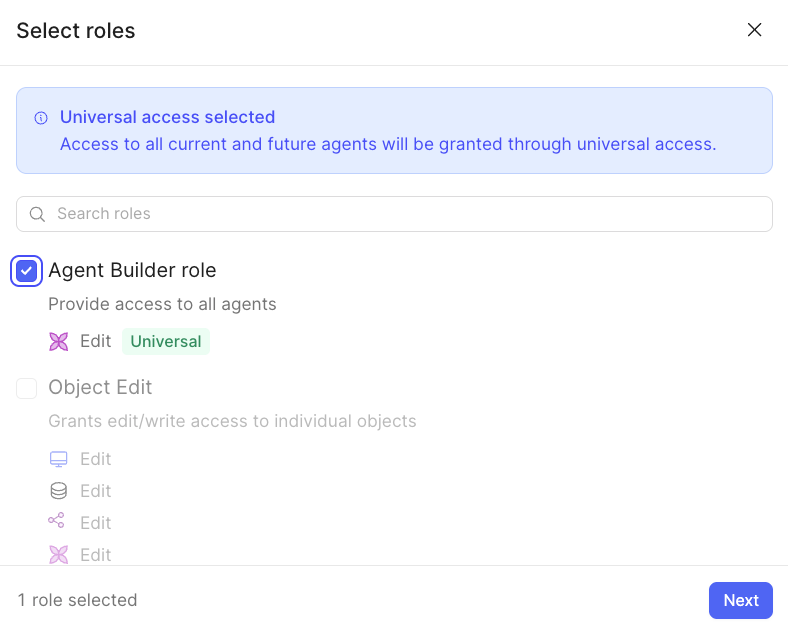
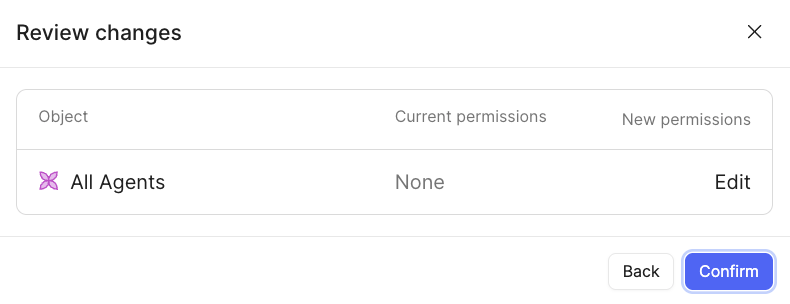
- Select Next. Review the changes and select Confirm.
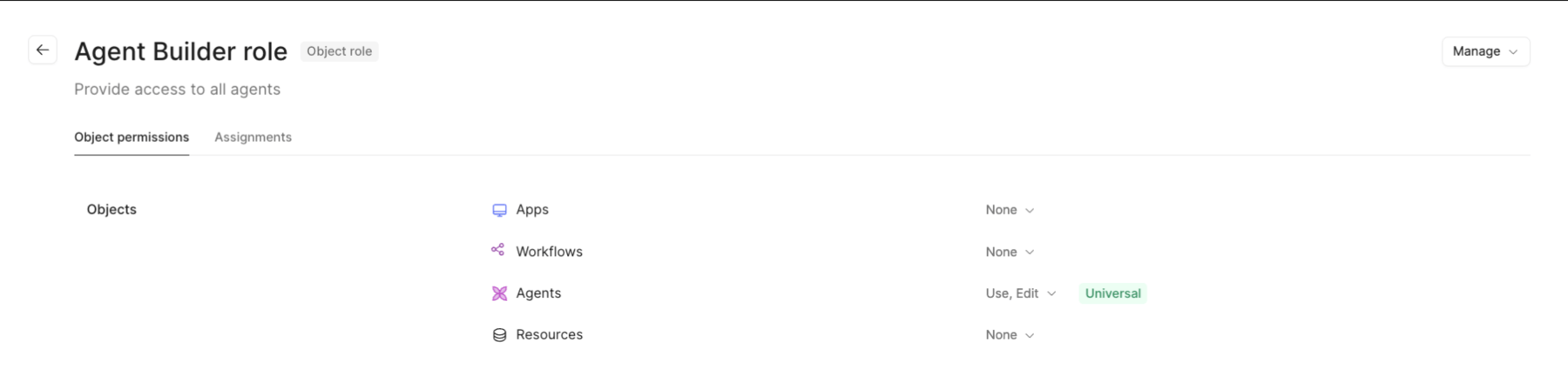
- The Object will now appear under Object permissions as shown below. The role now provides members of the group, identified as Assignments, the ability to Use/Edit agents across the space.
Summary
Object roles provide an alternative mechanism for administrators to provide access to Retool primitives (Apps, Workflows, Agents, Resources).