App Testing
Increase quality with app testing
This lab provides an overview of the App Testing feature.
App testing overview
The App Builder provides automated App Testing if enabled in the App Builder settings. The App Testing Guide dives into the current supported capabilities. The purpose is to provide deterministic functions that can verify both frontend and backend functionality. This is helpful as you continue to prompt and the Retool Agent needs to confirm base functionality continues to operate. If it doesn't it will fix the issue so the tests pass and functionality works properly.
Steps
Enable the feature
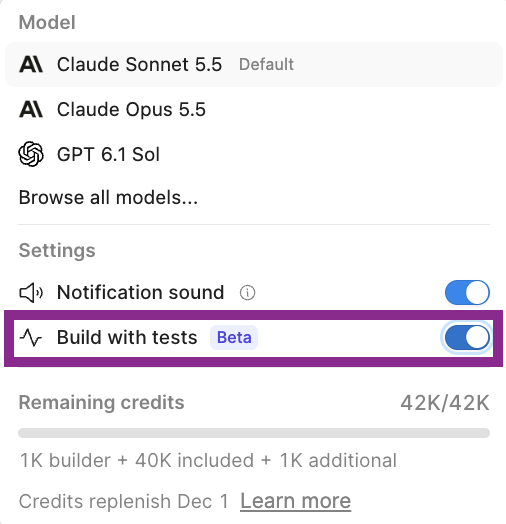
Turn on testing in the App Builder settings.
- In the App Builder, select Settings.
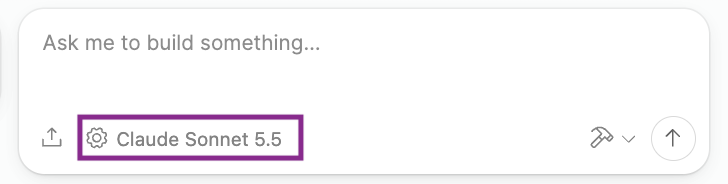
- Enable Build with tests.
Generate the app
With testing enabled, you can now prompt an application. Use the following prompt to create a to-do list tracker.
Create a to-do list tracker that allows me to add, modify, and delete to do items.
Review tests
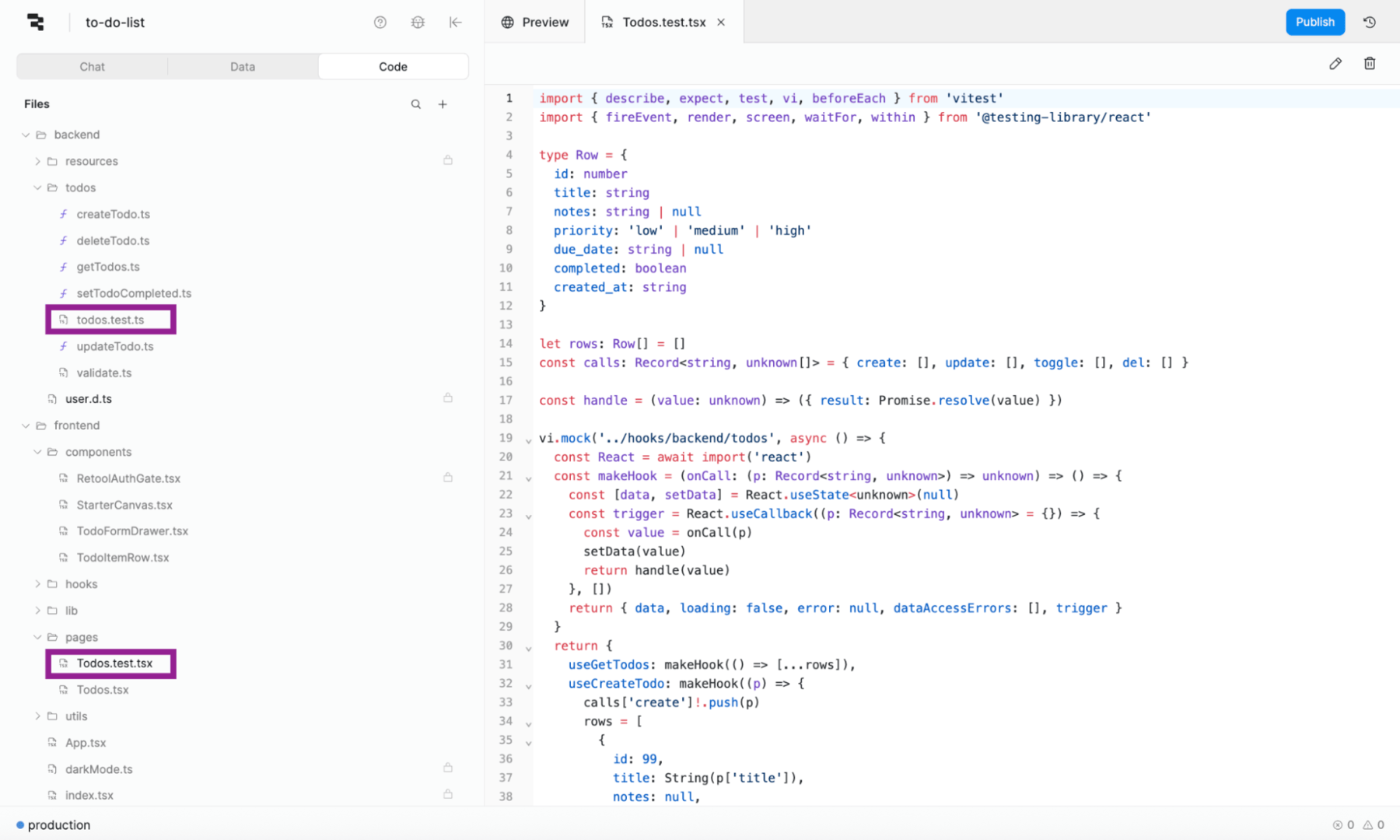
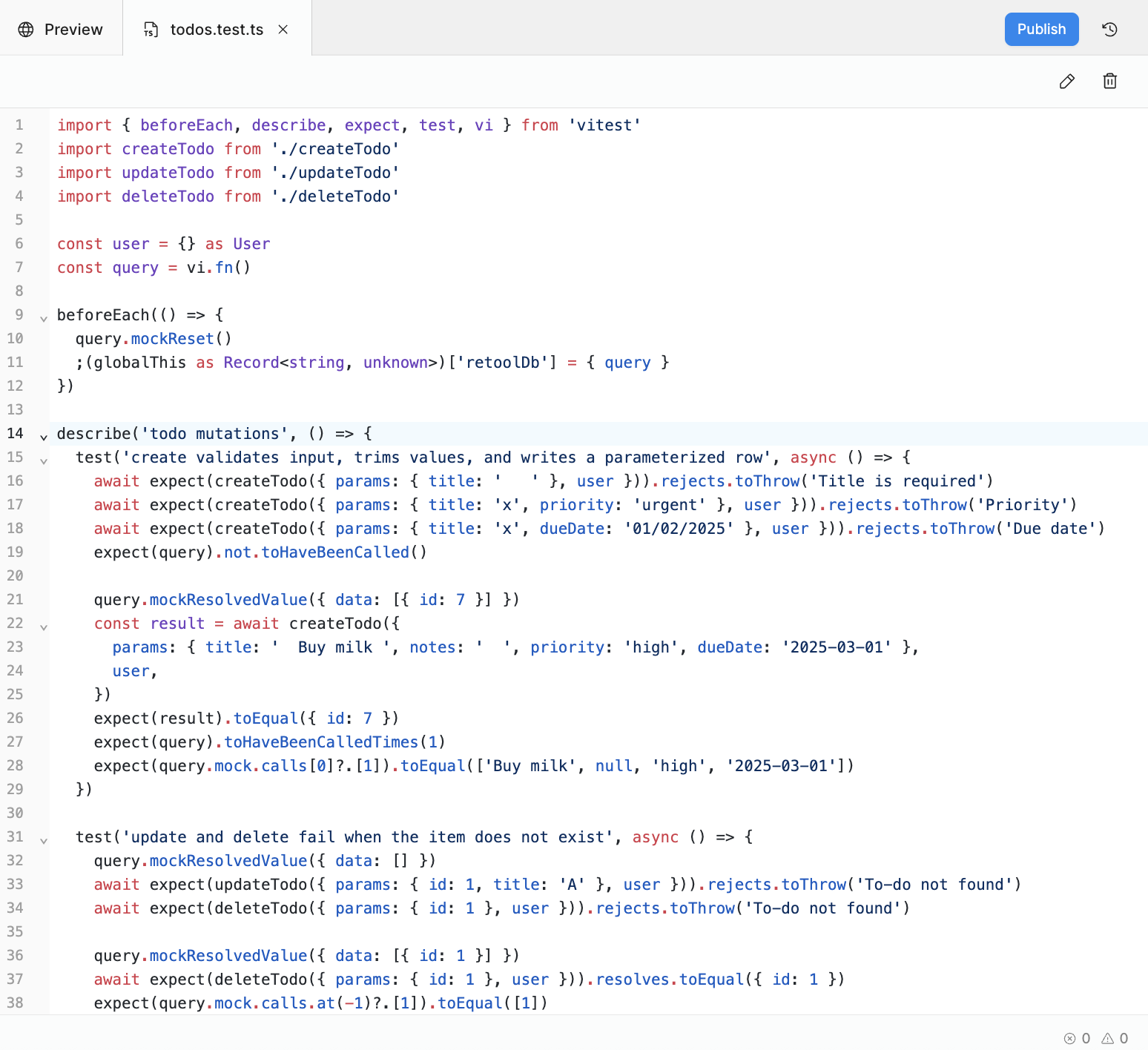
Build with tests will generate either frontend or backend tests as appropriate. Examine the frontend and backend folders for *.test.tsx (for frontend) and *.test.ts (for backend) files.
Run tests
To run tests, select Open debug console.
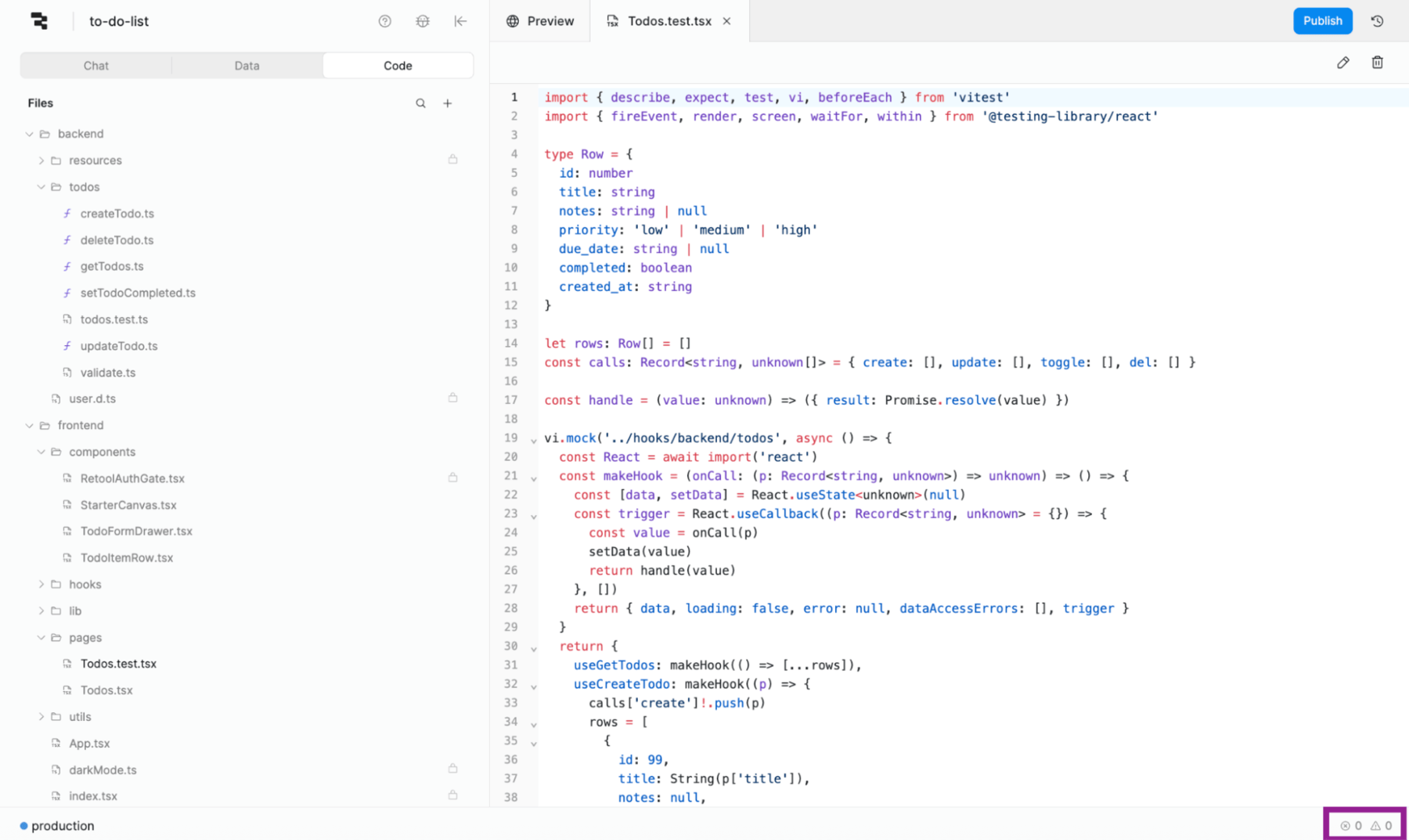
To view the tests, select Tests, which will display the generated tests (3 in this example, 2 for backend and one for frontend).
- Select Run all tests.
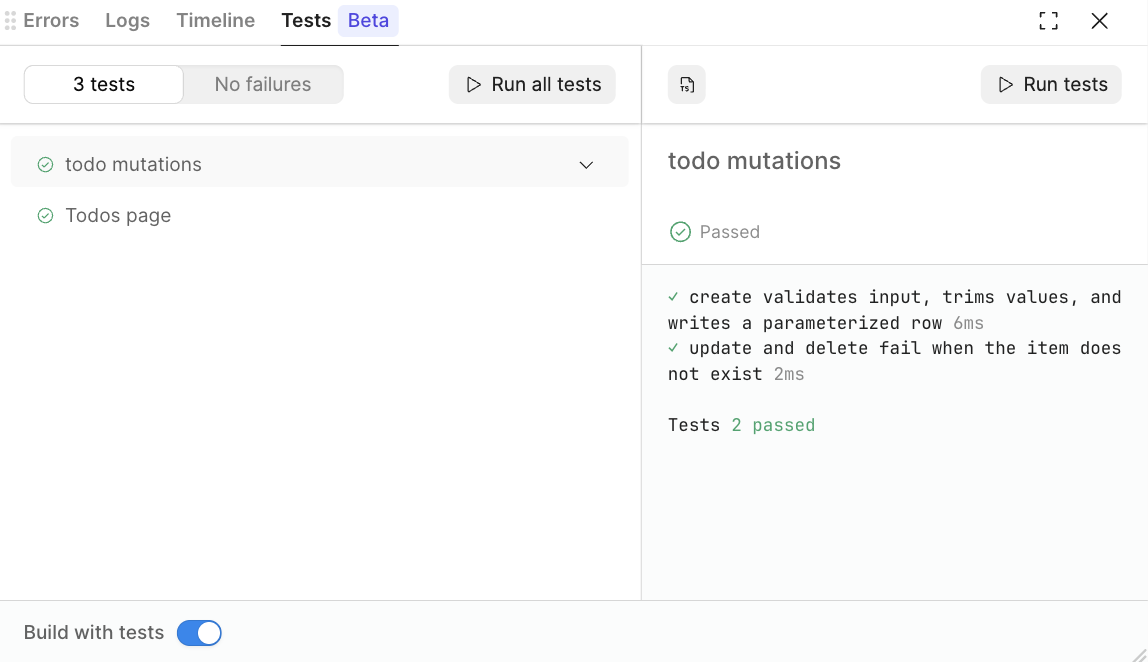
- You can then select which tests you want to dive into and view the test results in the right panel.
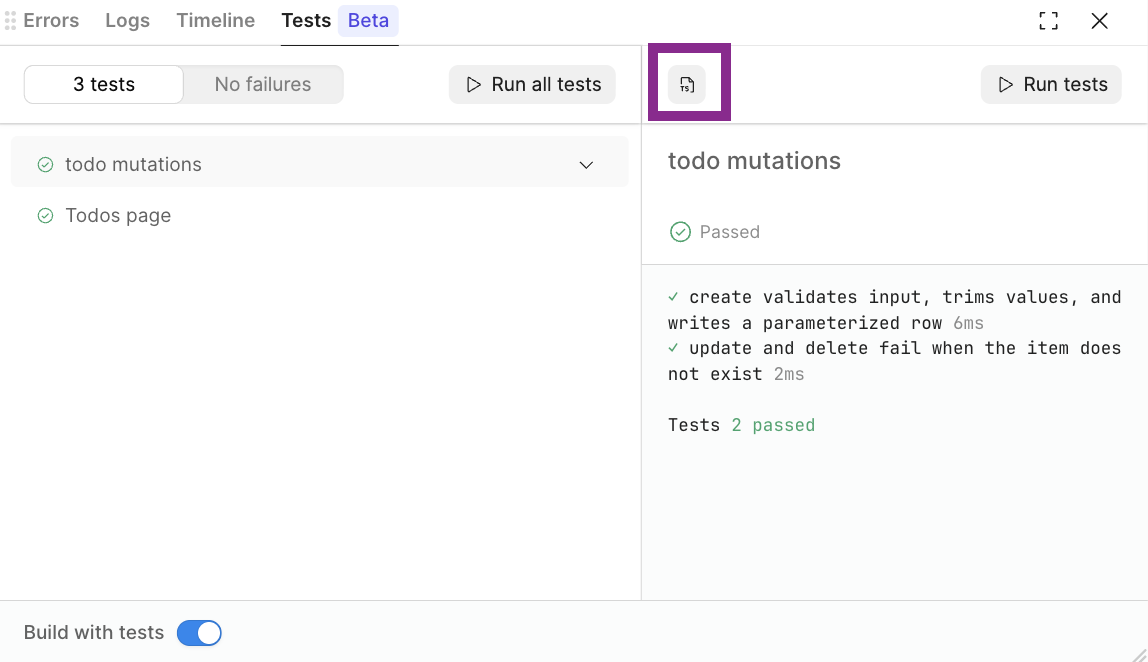
- If you want to view the source code for the tests, select the TS icon in the right panel.
This will open up the script for your review. In this case, the todo mutations, or backend/todos/todo.test.ts.
Summary
In the previous steps, you enabled the Build with tests feature, prompted an application, and examined the generated test scripts. We then accessed those tests in the debug console, ran them, and examined the results.