Import a React Application
This lab walks through importing a React application into Retool from third-party AI tools such as Claude Code, Codex, Cursor, Replit, and Lovable.
Lab Requirements
The lab imports a React application created in Anthropic Claude Code using the macOS Desktop App. The following prompt was used to generate the application using an Amazon API Gateway endpoint:
 I want you to create a React application that consumes compliance data from this endpoint:

 https://if2odzj33e.execute-api.us-east-2.amazonaws.com/default/complianceService?docs

 Provide a table display and charts if appropriate.
Once the prompt is executed, Claude Code provides a server endpoint and details on what was generated.
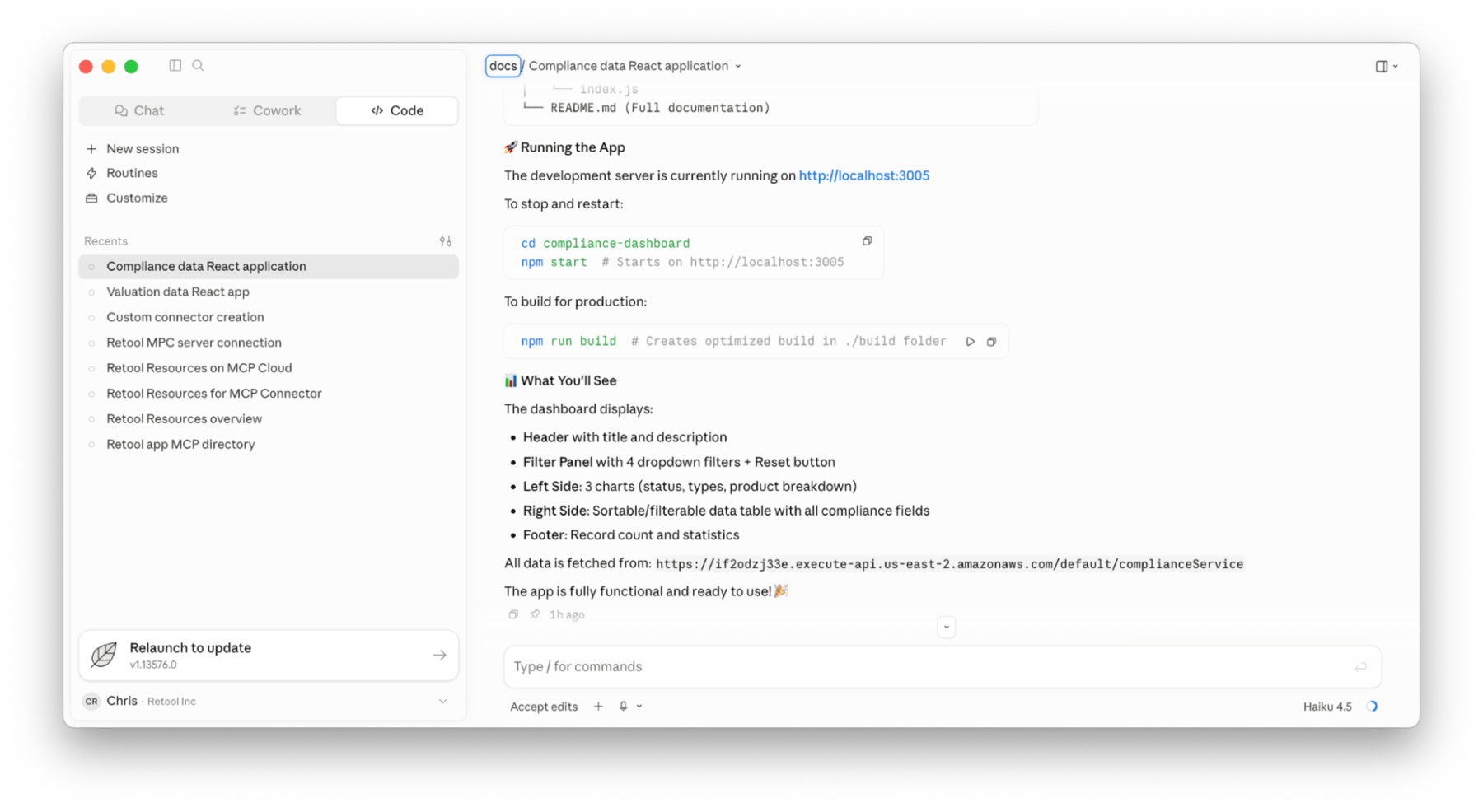
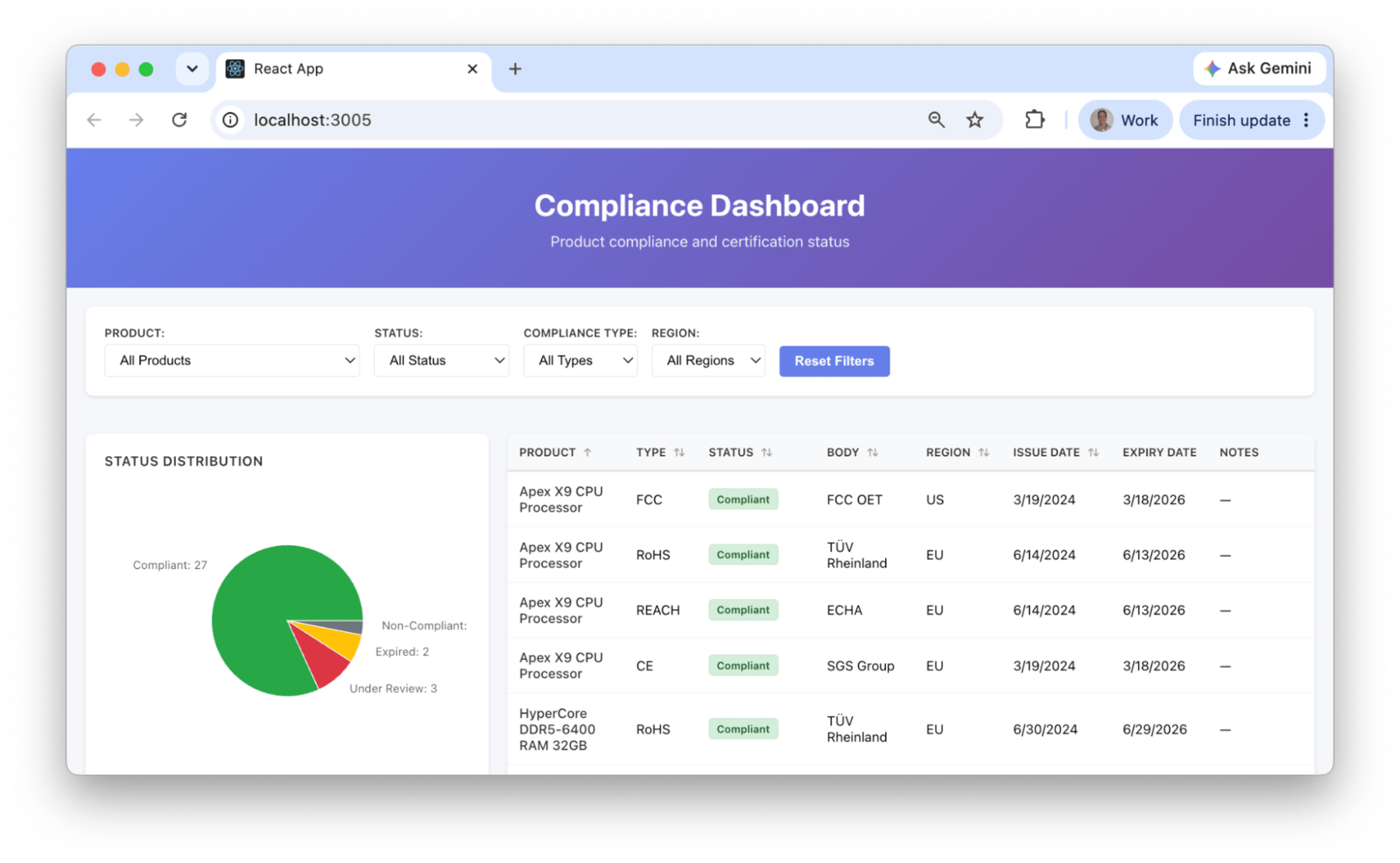
- Confirm the application displays locally at the server spun up on localhost.
- Next, zip the application folder so it can be imported into Retool. On MacOS, right-click and select Compress.
Import React Application
Import the React application by first creating an app:
- Select Retool Home > Apps > Create > Retool app
- Select Import React code
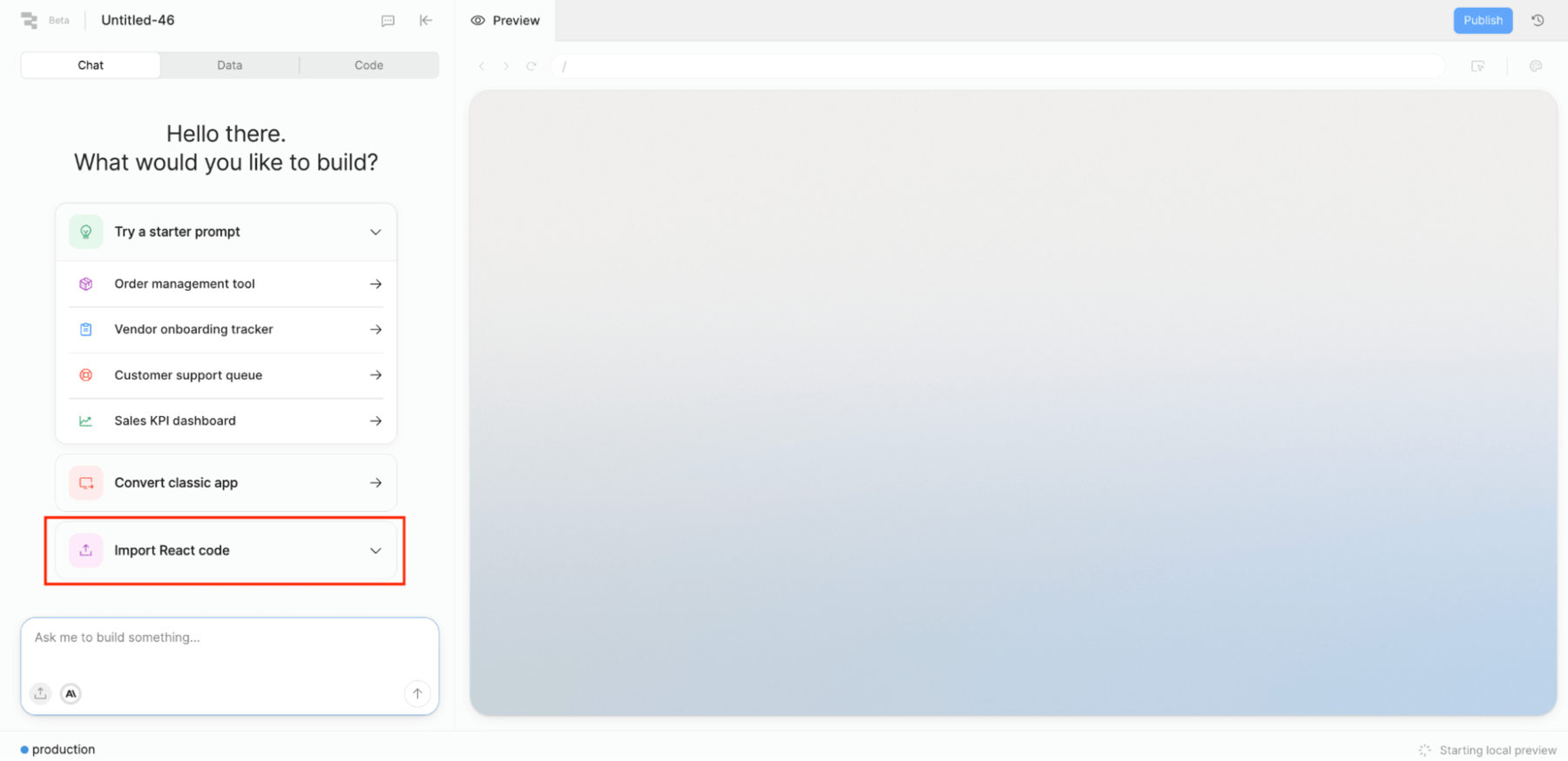
- Select the generated ZIP file.
- The Retool Agent will begin by examining the data required and app details.
Import Process Overview
The import process reviews the application and identifies its structure and dependencies.
Map Resources
During the import process, a React application can contain code that specifically binds to external data services (e.g., REST APIs, databases, SaaS endpoints). A Connect Resources dialog will appear focused on mapping to existing resources, mock data, or allowing you to create a resource on the fly.
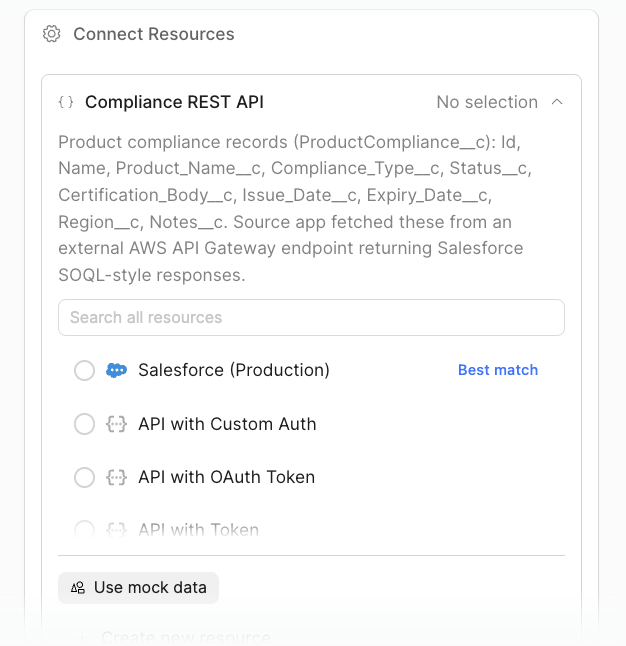
-
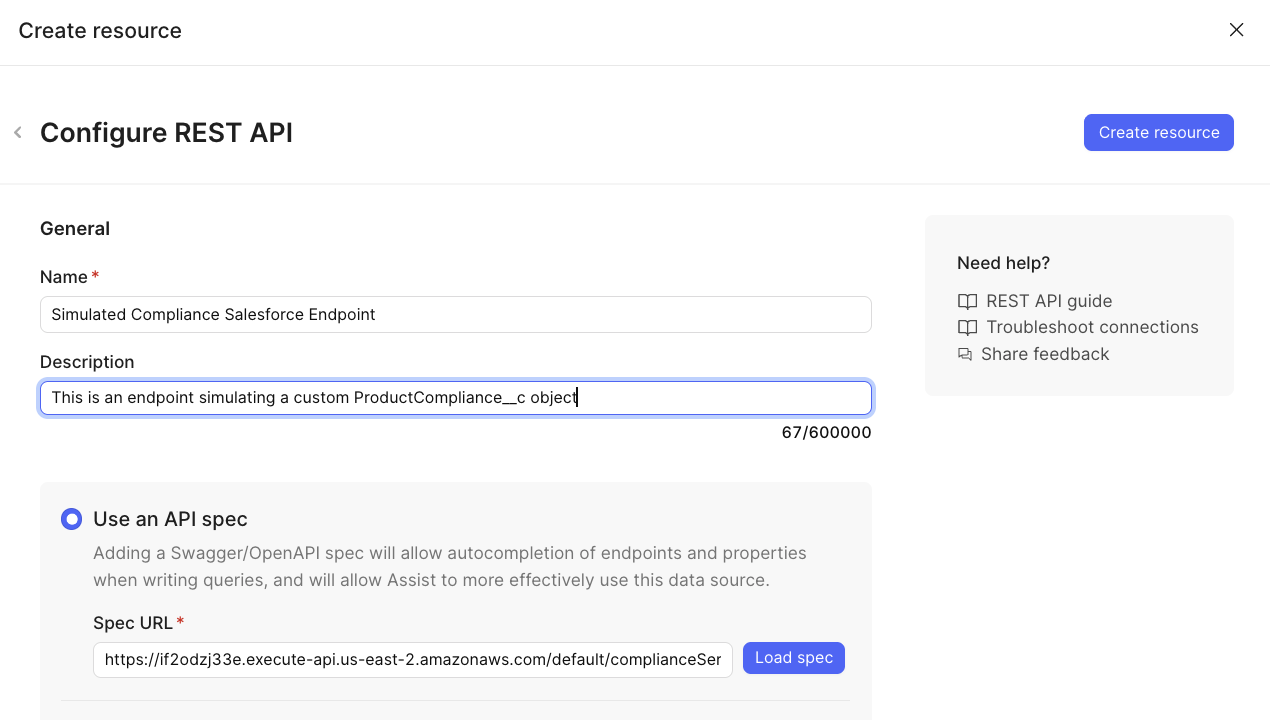
Select Configure Resource to define it on the fly and specify the following configuration parameters:
- Name = Simulated Compliance Salesforce Endpoint
- Description = This is an endpoint simulating a custom ProductCompliance__c object
- Use an API Spec (Spec URL) =
https://if2odzj33e.execute-api.us-east-2.amazonaws.com/default/complianceService?docs
-
Select Load Spec
- Select Create resource
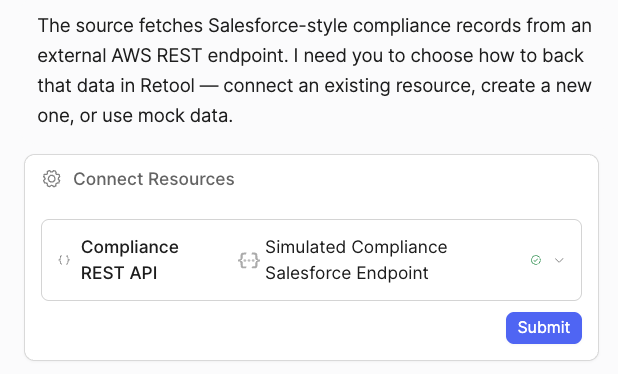
- Once complete, select Submit to connect resources.
Plan Generation
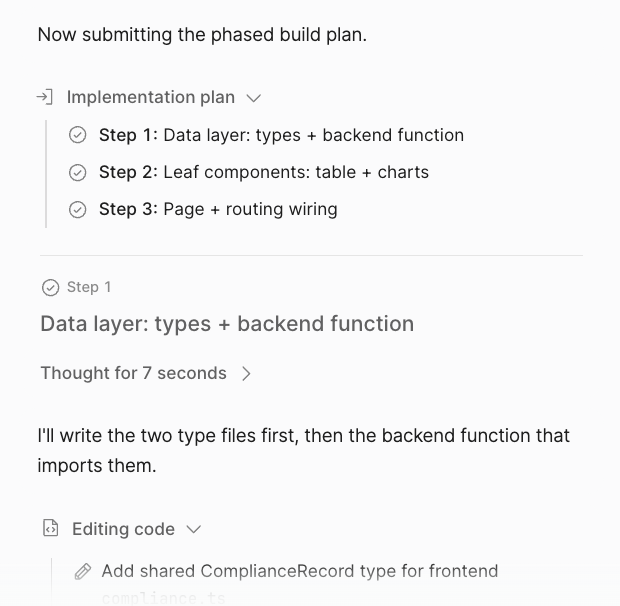
When the import process is ready, an implementation plan is displayed along with the progress of its execution.
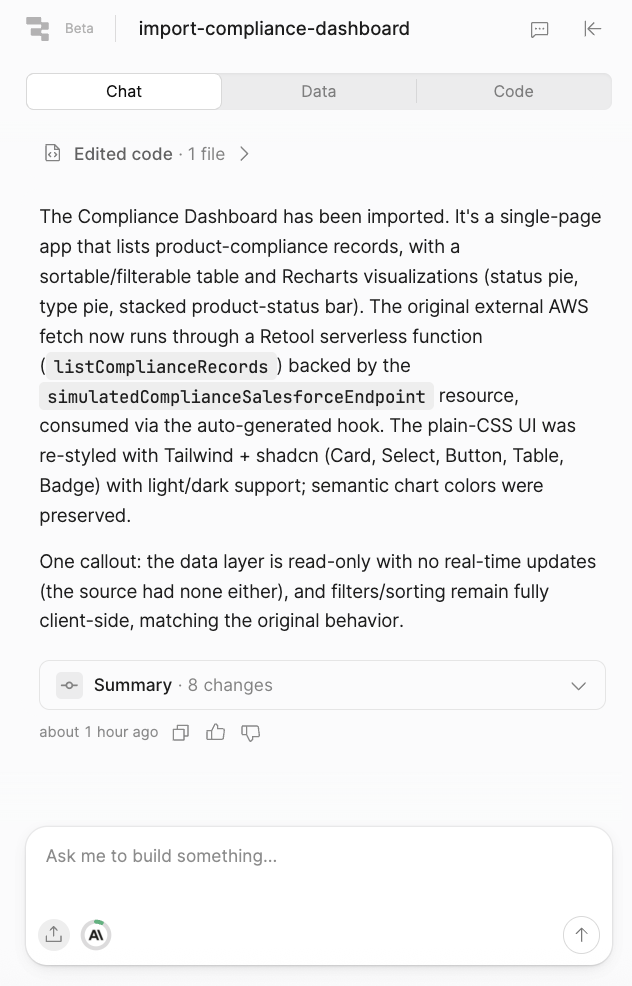
Once the import process completes, the Chat panel confirms the result.
Validate Application
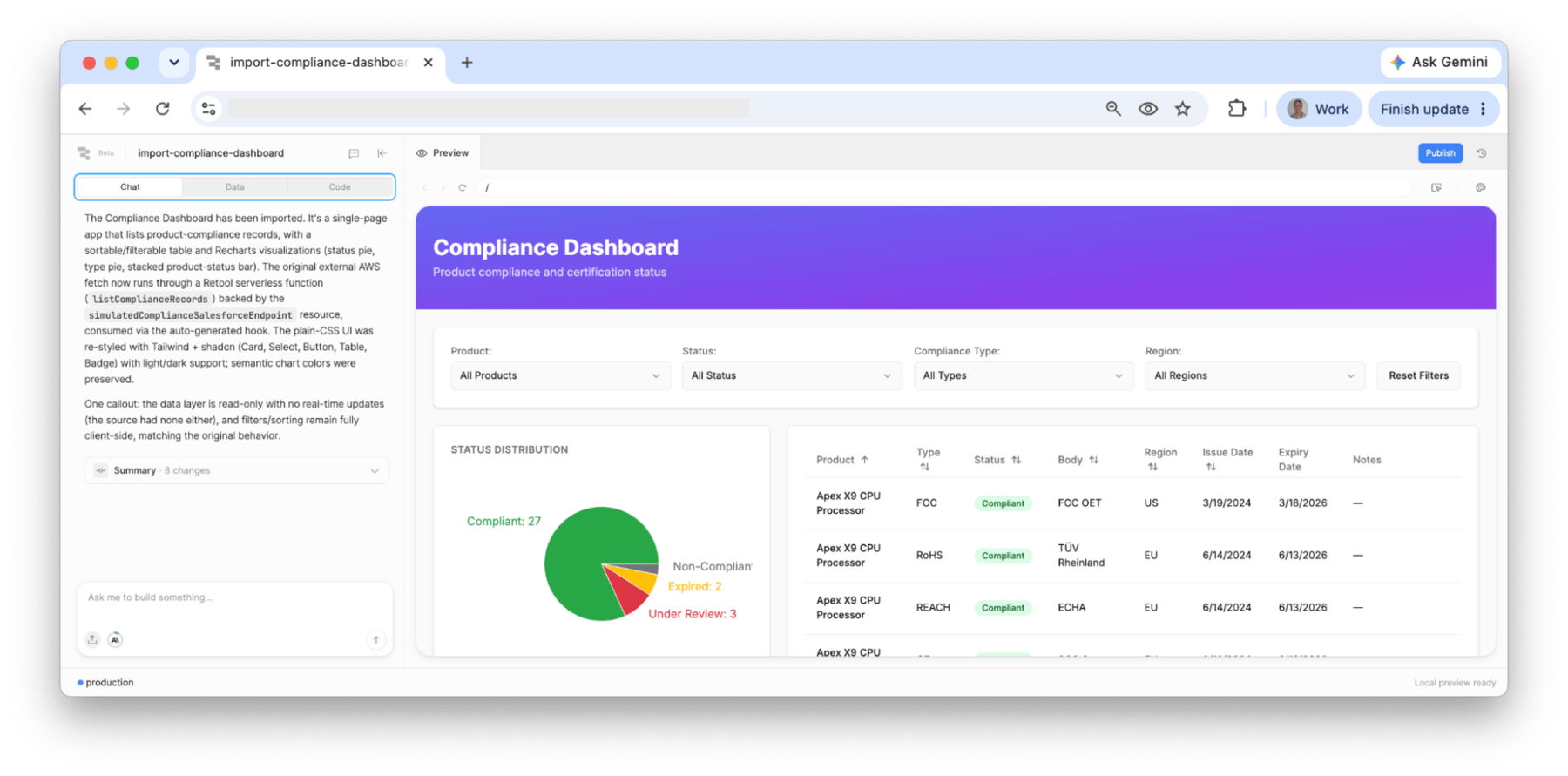
The following image shows the imported application ready for testing and validation.
Folder Structure
During the import, Retool creates folders that capture the original React application and track the import process as read-only files that cannot be modified.
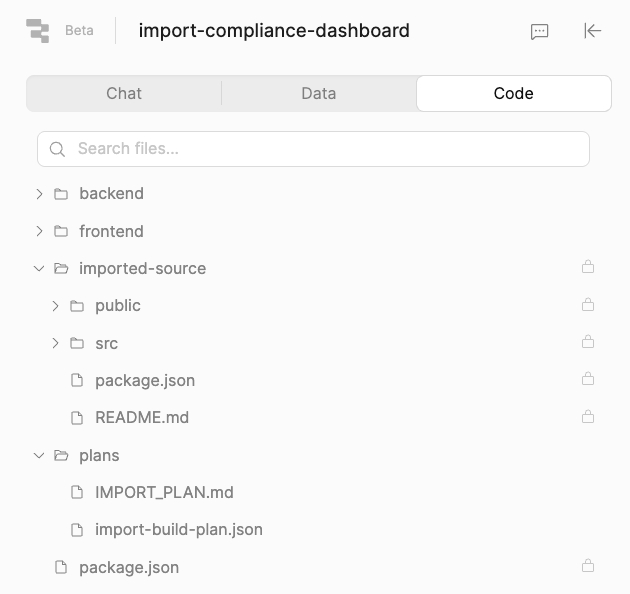
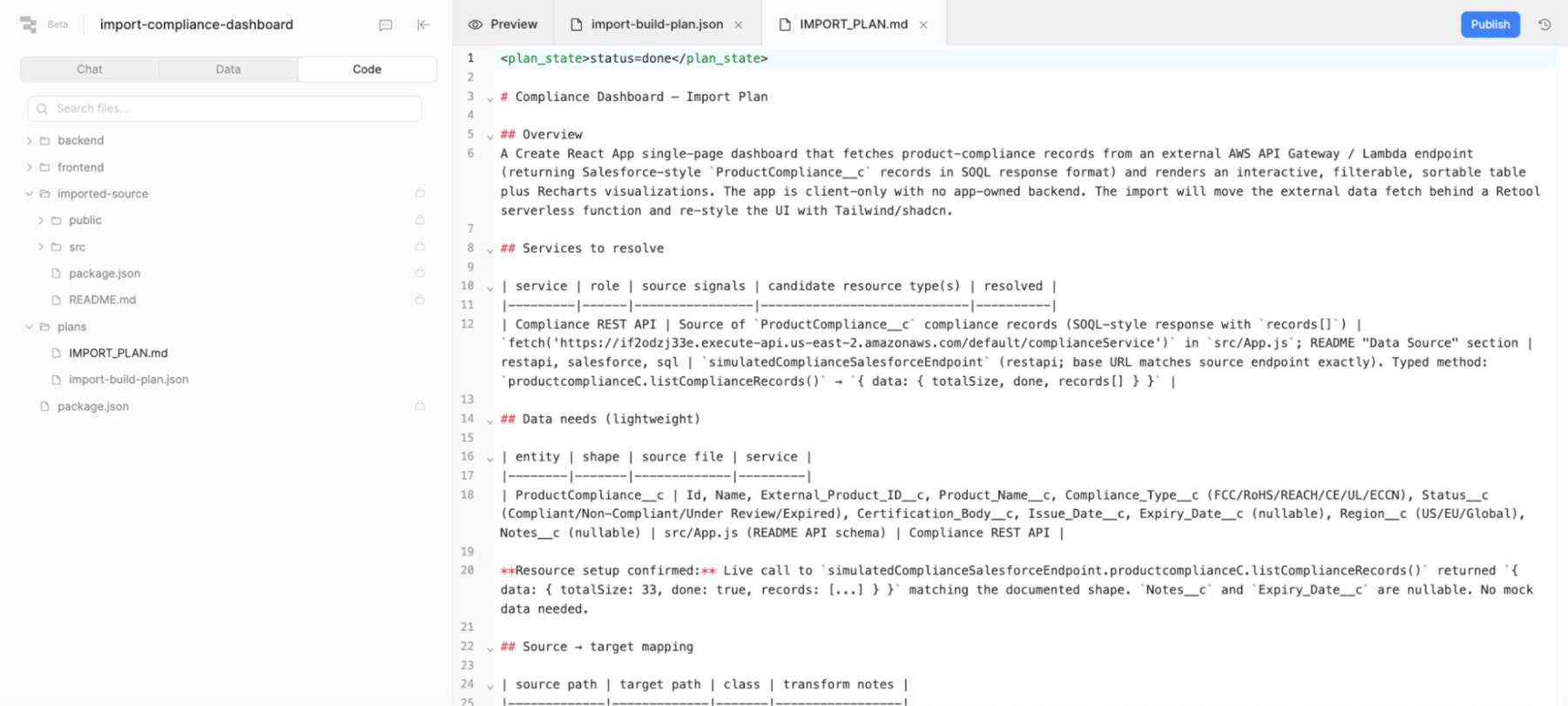
The imported-source folder contains the original application that the agent references. The plans folder is where Retool tracks the implementation phases. IMPORT_PLAN.md contains what the agent found and the plan it created.
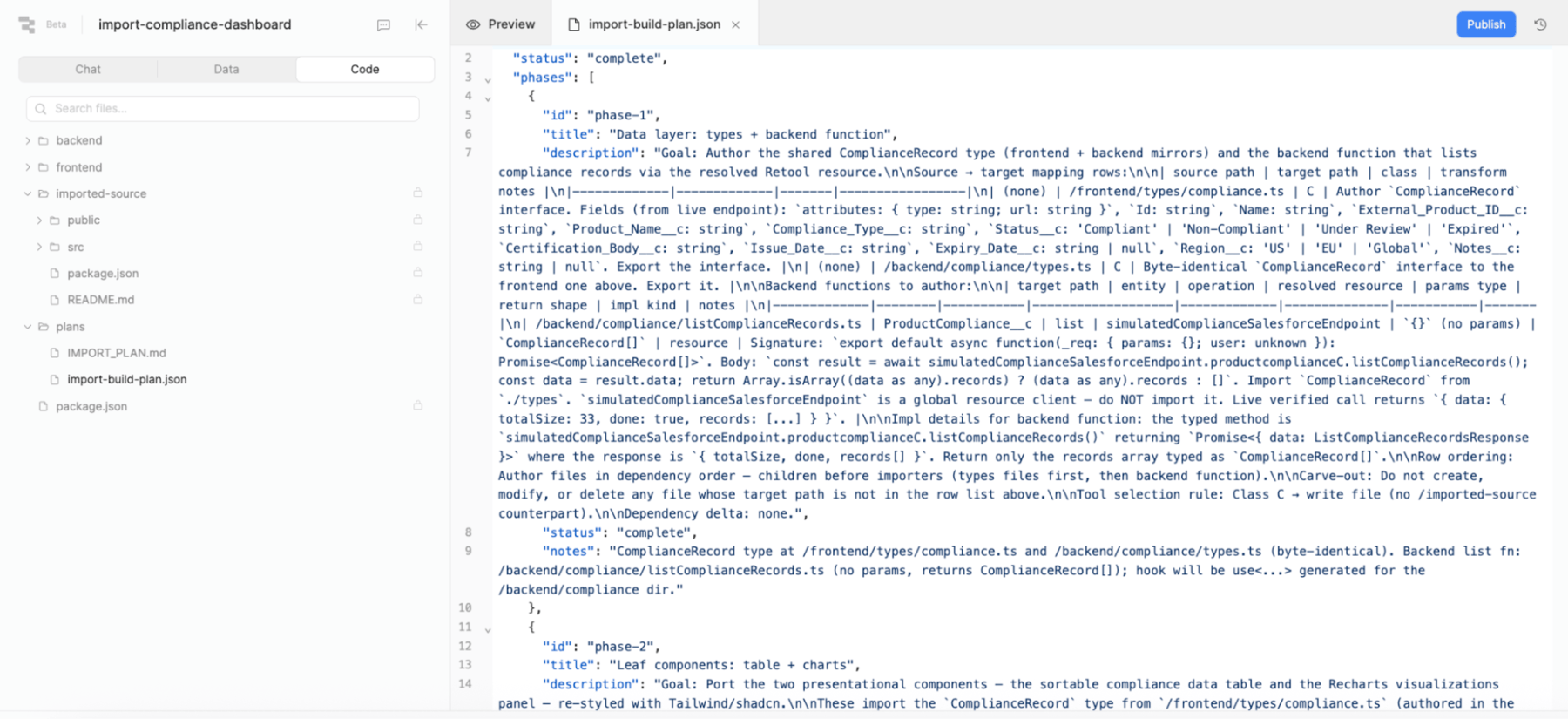
The import-build-plan.json file looks like the following:
Summary
This lab demonstrates how a React application built with AI coding tools can be imported into Retool, and covers the resource mapping and plan generation steps involved in the process.