MCP Generated App
This lab demonstrates how to use Claude Code or Codex as an MCP host to connect to the Retool MCP Server and generate a Retool application from natural language prompts.
Requirements
- Claude Code or Codex installed on your machine
- A Retool instance with an existing database table (
electronic_products) - Access to a terminal (macOS)
This lab uses the electronic_products table defined in the Compliance Dashboard lab. Complete that lab's database setup before proceeding.
MCP Setup
- Claude Code
- Codex
Install Claude Code
Review and follow the Anthropic quickstart documentation to install Claude Code on your machine.
Configure the MCP Server
- Open a Terminal and create a working directory, then change into it:
mkdir retool-mcp-lab && cd retool-mcp-lab
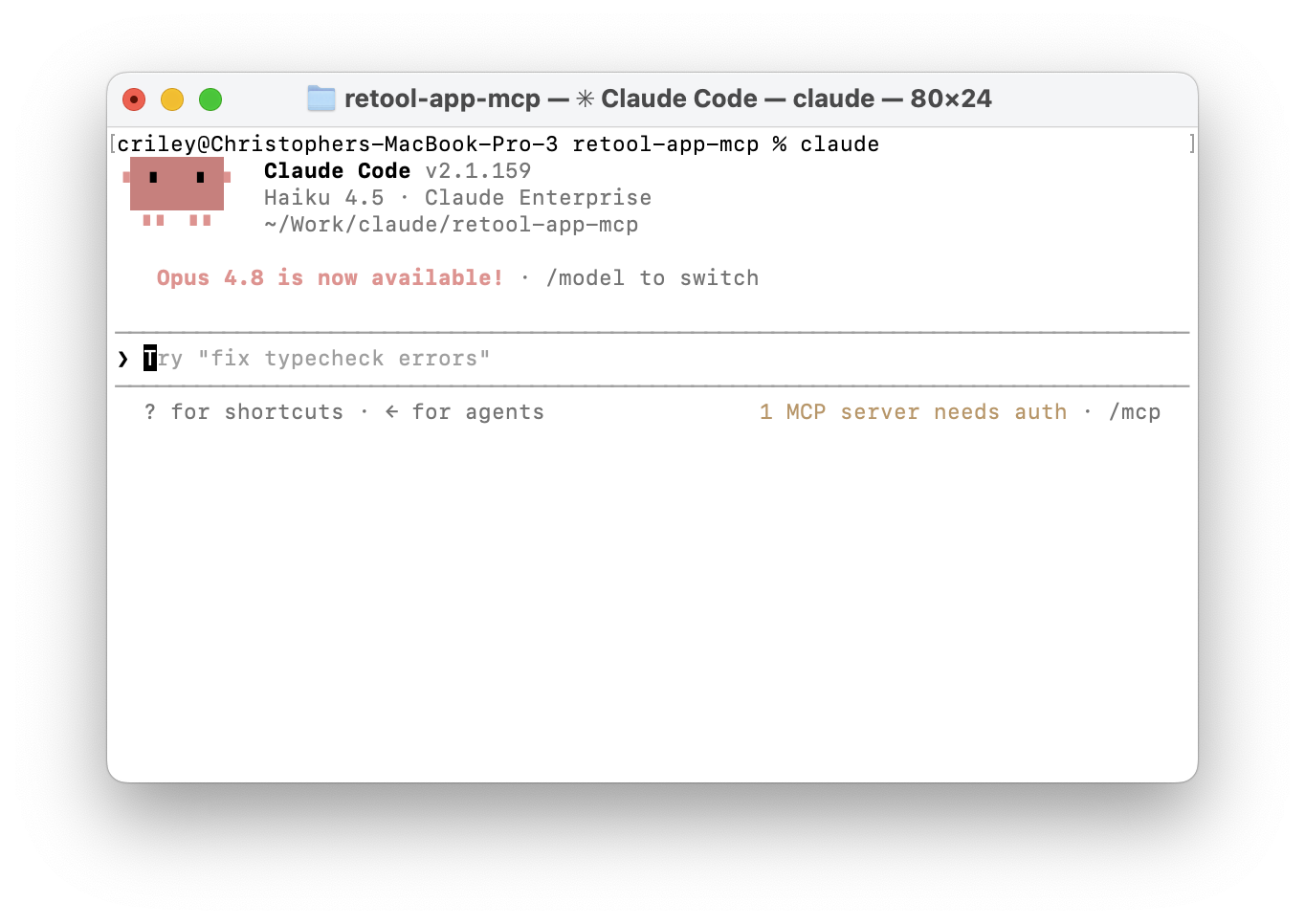
- Start a Claude Code session:
claude
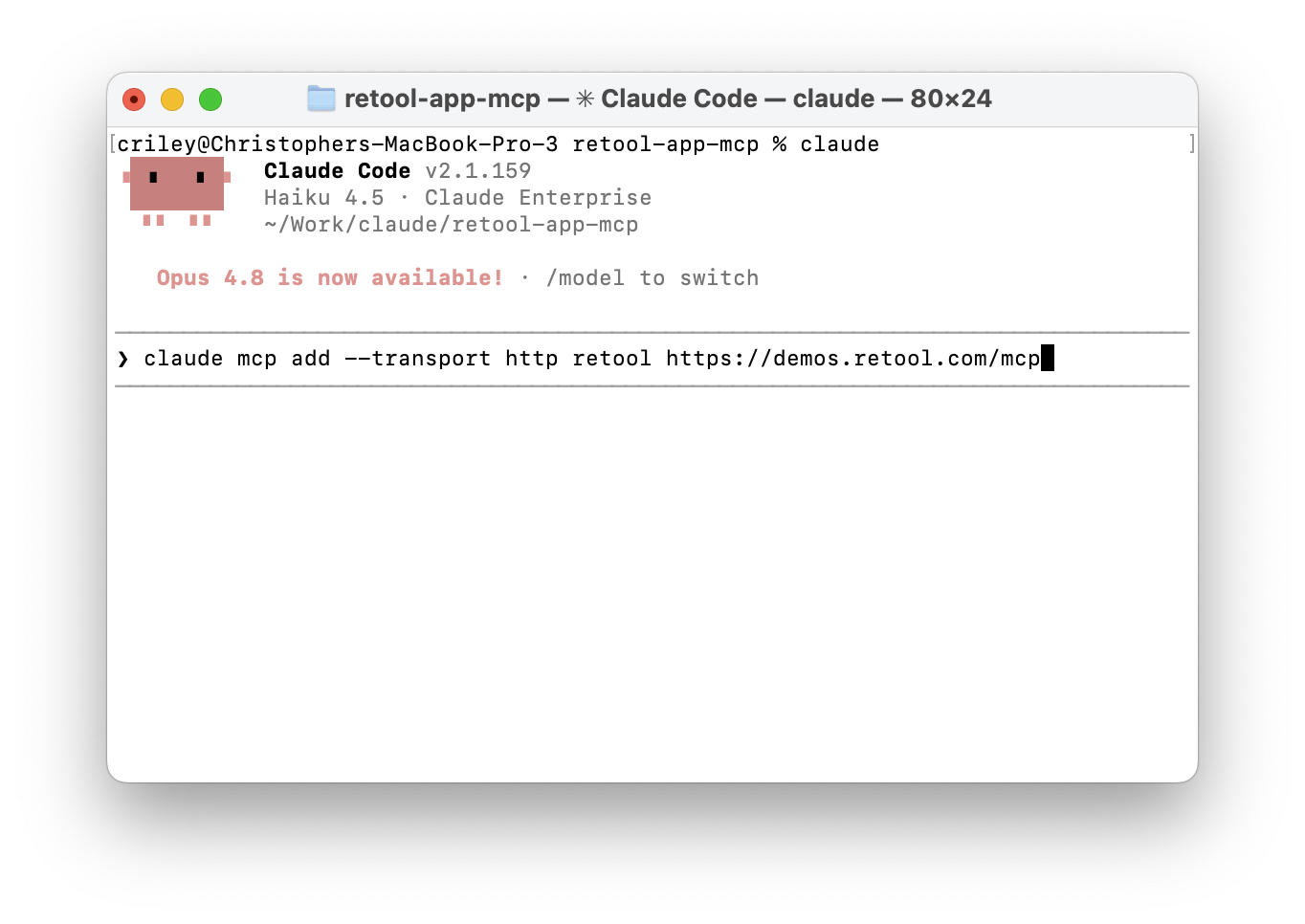
- Add the Retool MCP Server. Replace
<your-retool-instance>with your organization's subdomain:
> claude mcp add --transport http retool https://<your-retool-instance>/mcp
- Exit the terminal session, then open a new terminal, navigate back to your working directory, and run Claude Code again.
The Retool MCP Server works with other CodeGen tools beyond Claude Code. See the Retool MCP documentation for configuration examples.
Authenticate with Retool
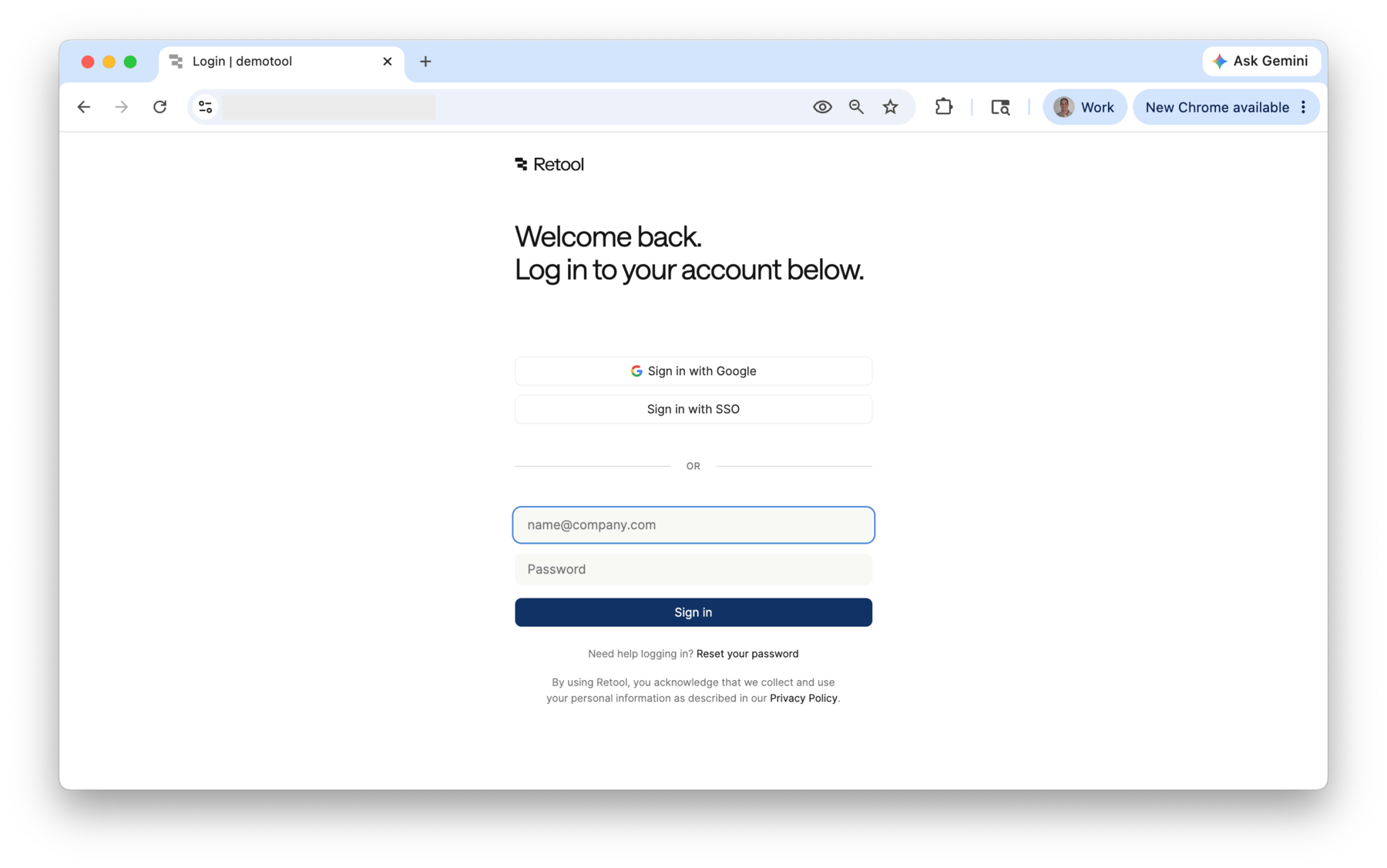
- When prompted, authenticate into Retool.
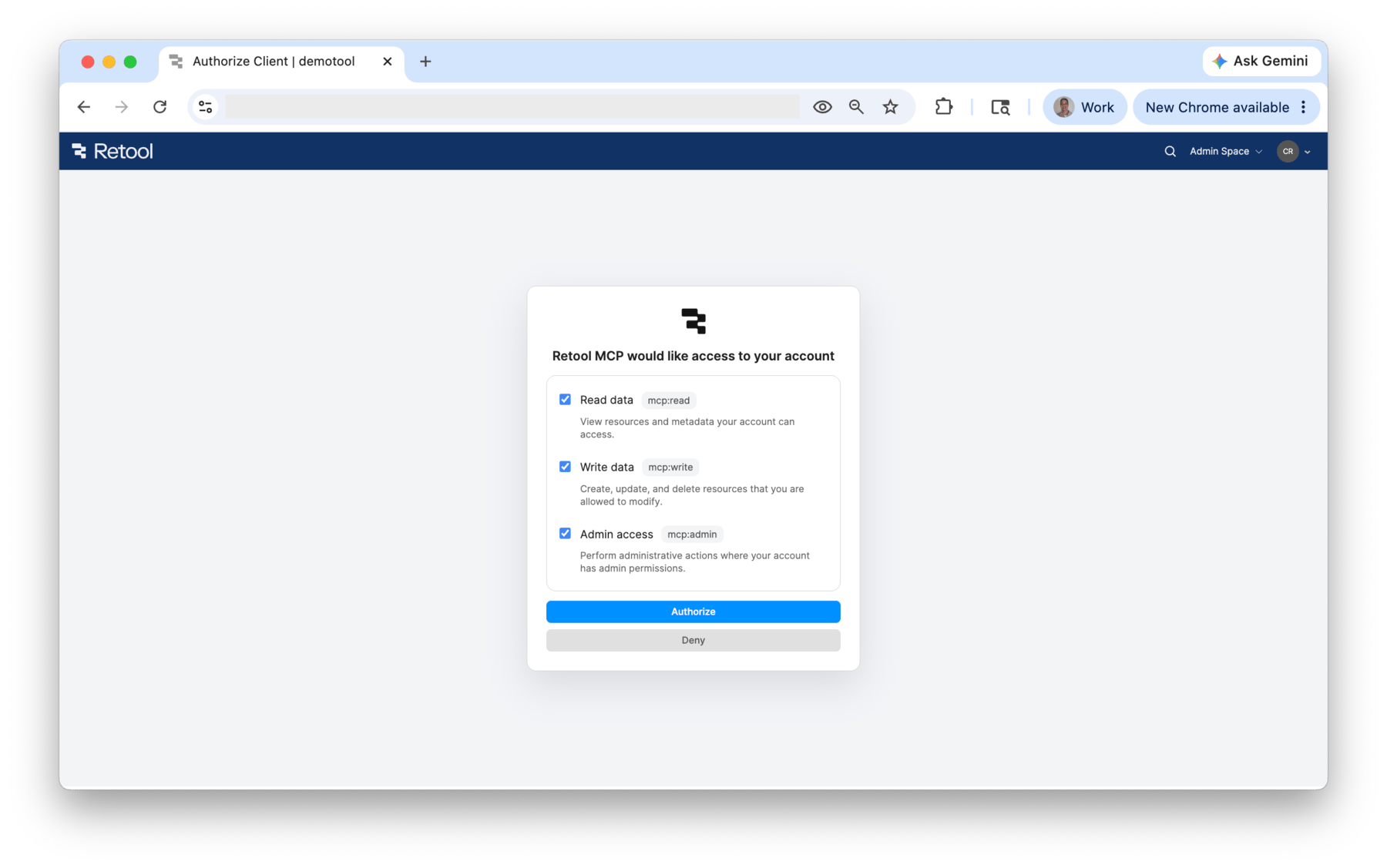
- Select Authorize on the OAuth form to allow Claude Code to perform actions in Retool on your behalf.
Verify the MCP Connection
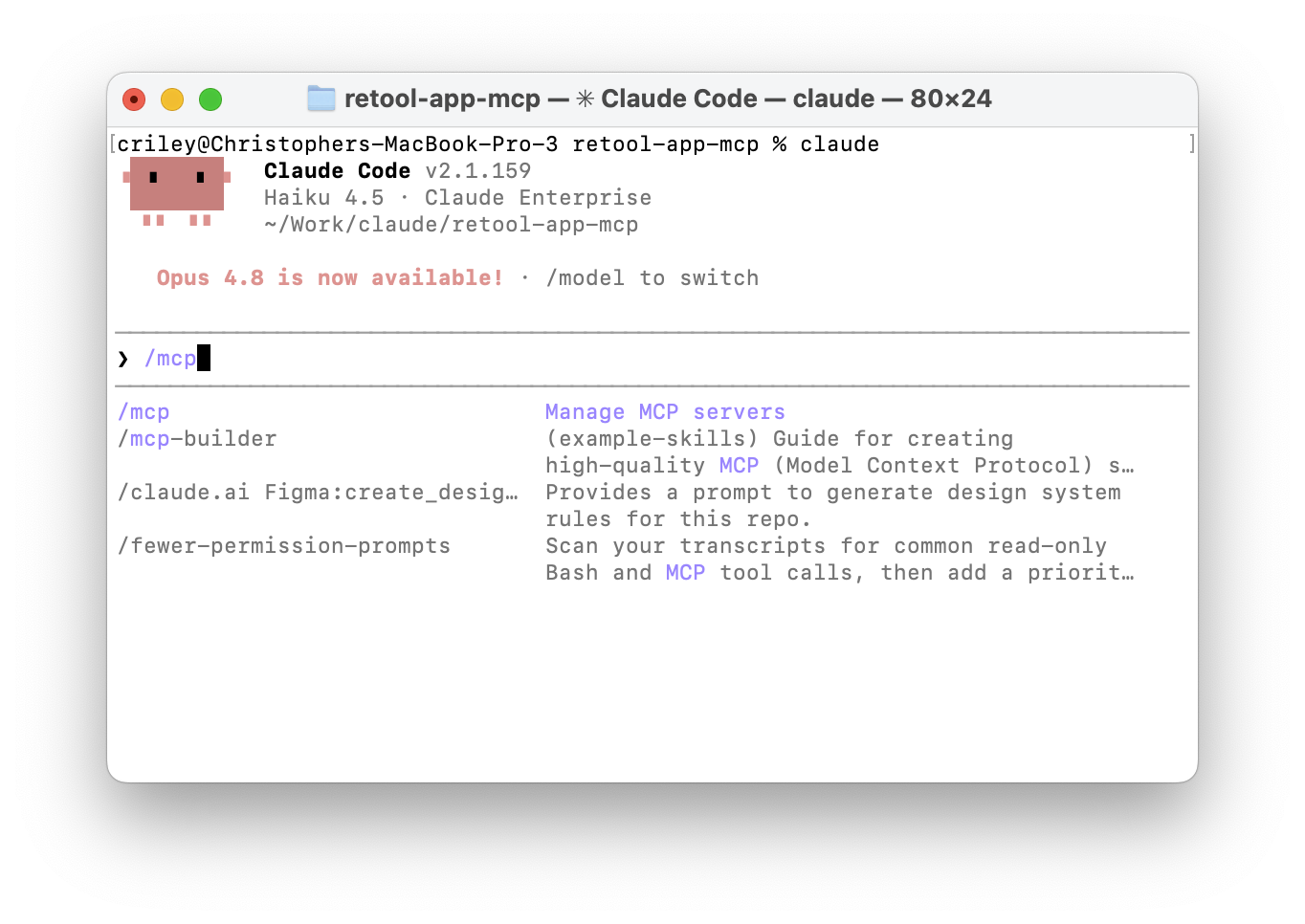
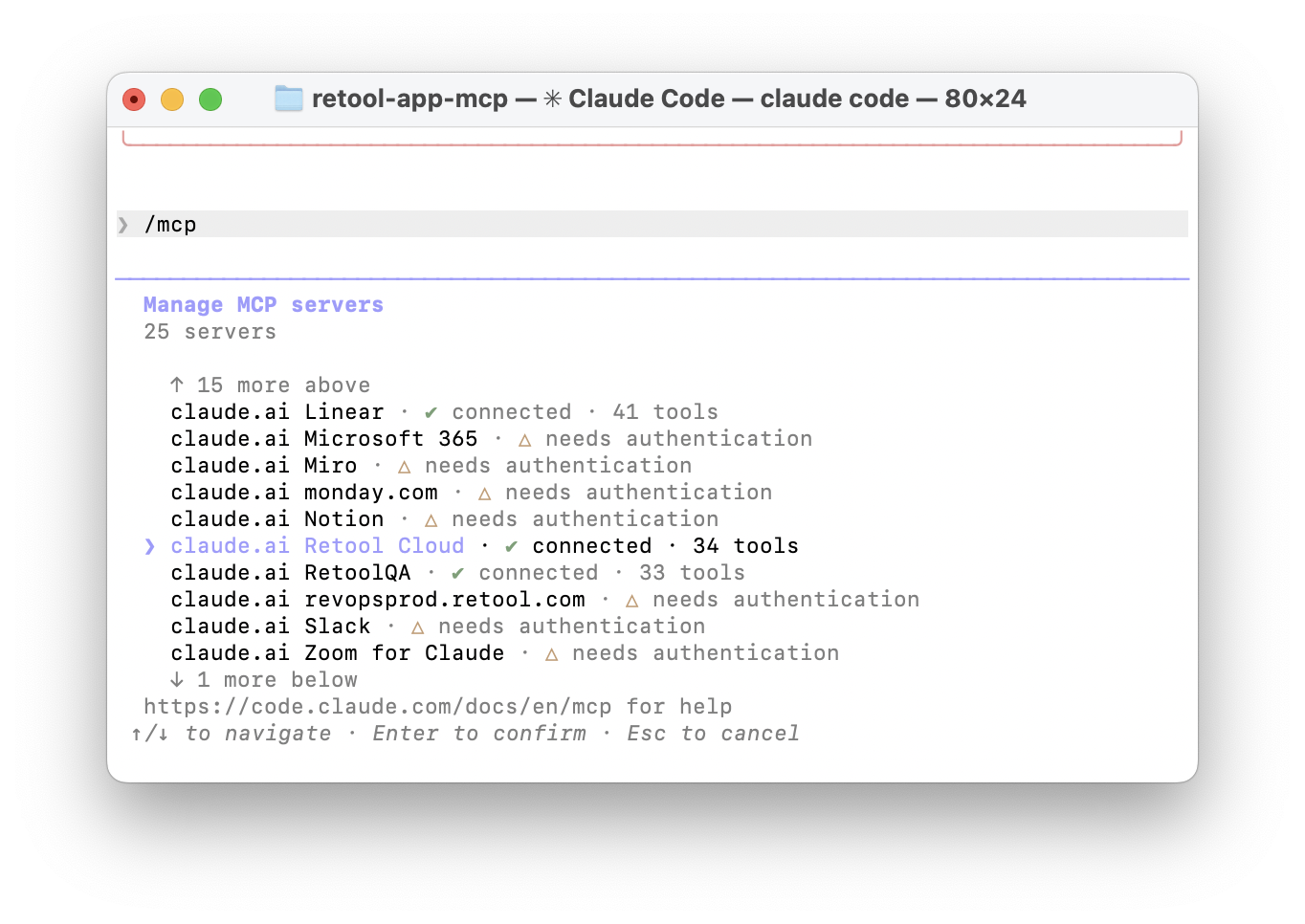
- Run the following slash command to list configured MCP servers:
> /mcp
- Confirm that the Retool MCP server appears in the list with a connected status before continuing.
Prompt an Application
Explore Available Resources
- Start by asking Claude Code what Retool resources are available:
> Can you share what Retool Resources are available to build apps from?
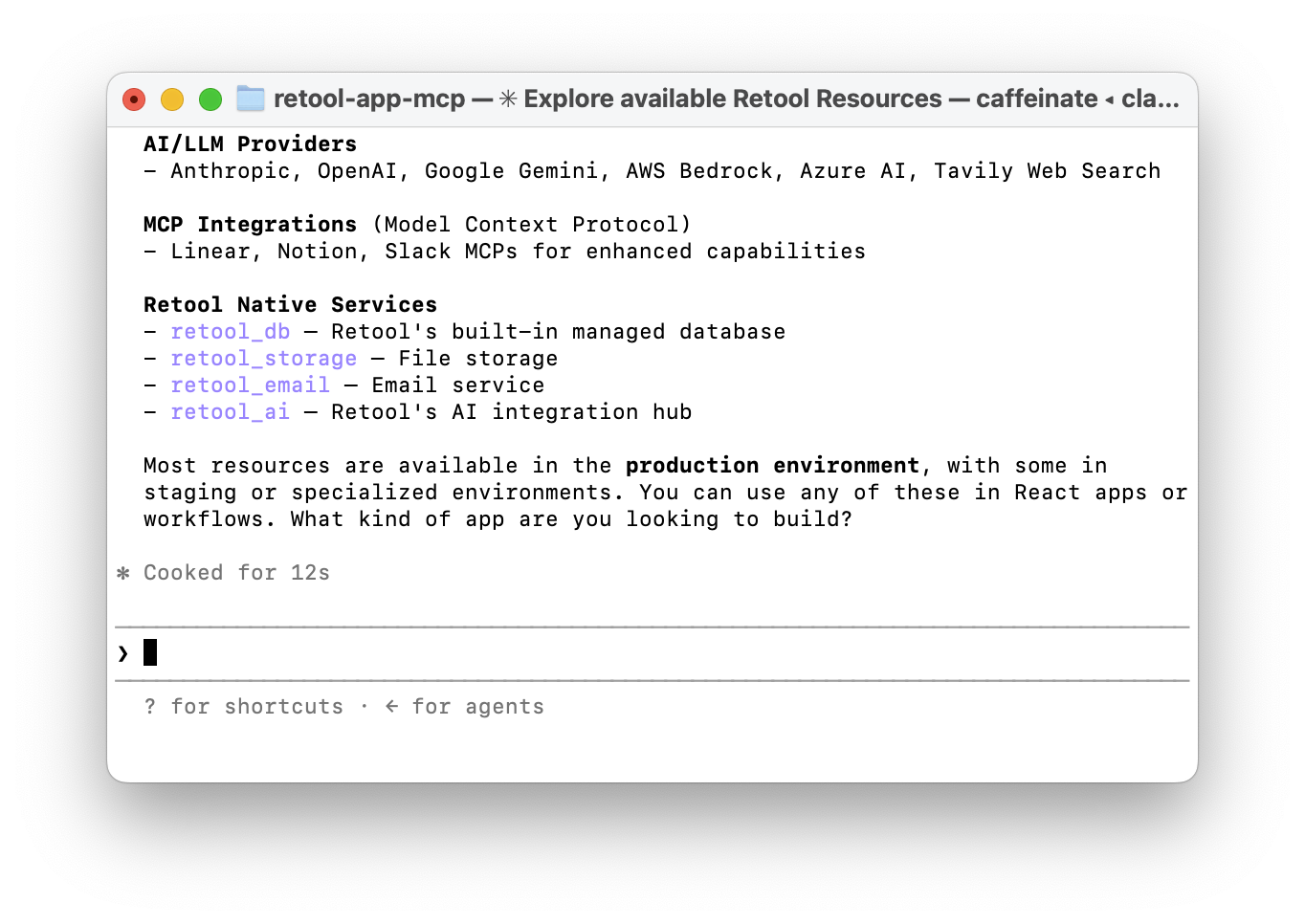
The response will list configured resources, including retool_db.
Generate the Application
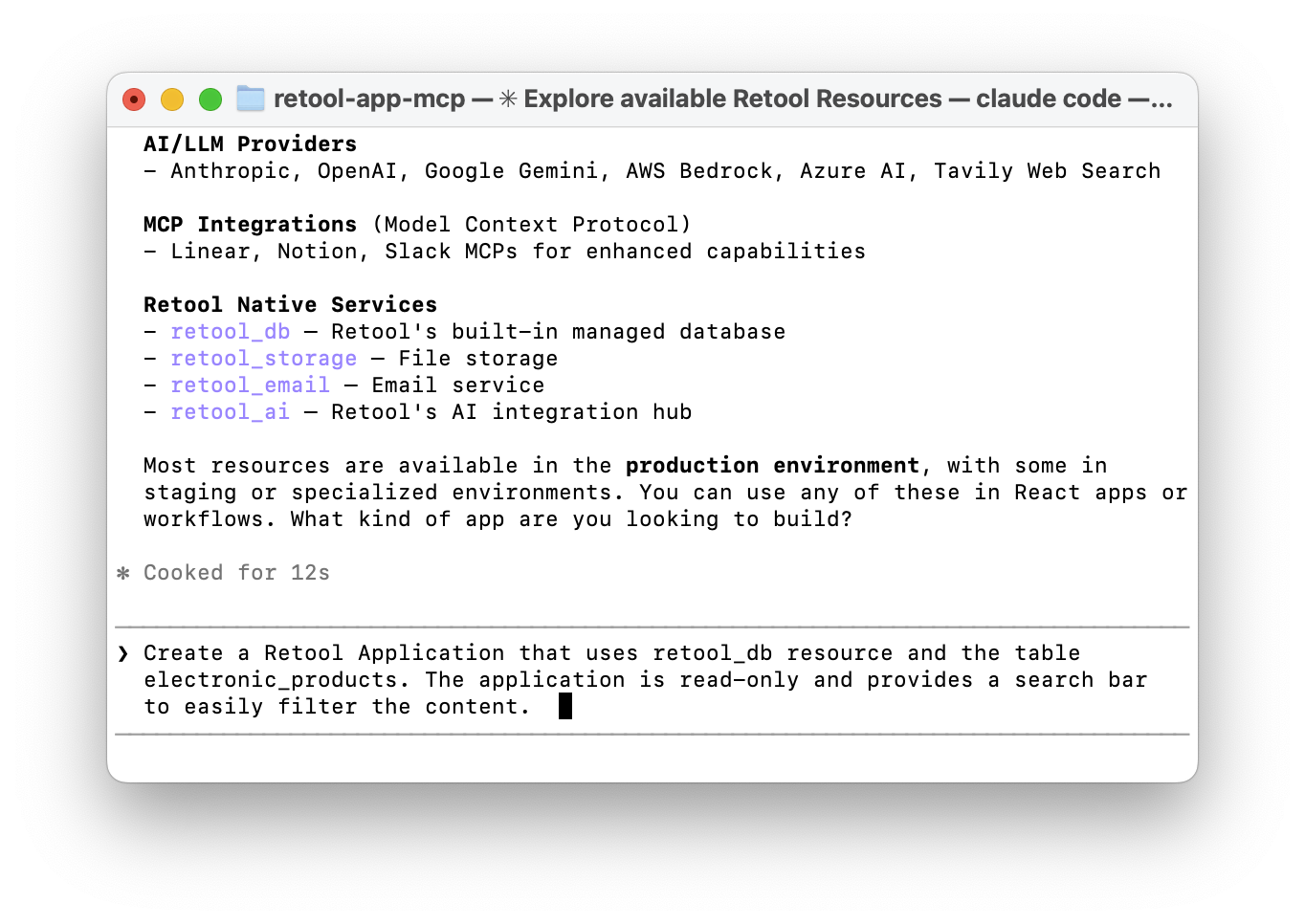
- Prompt Claude Code to create a read-only application with a search bar:
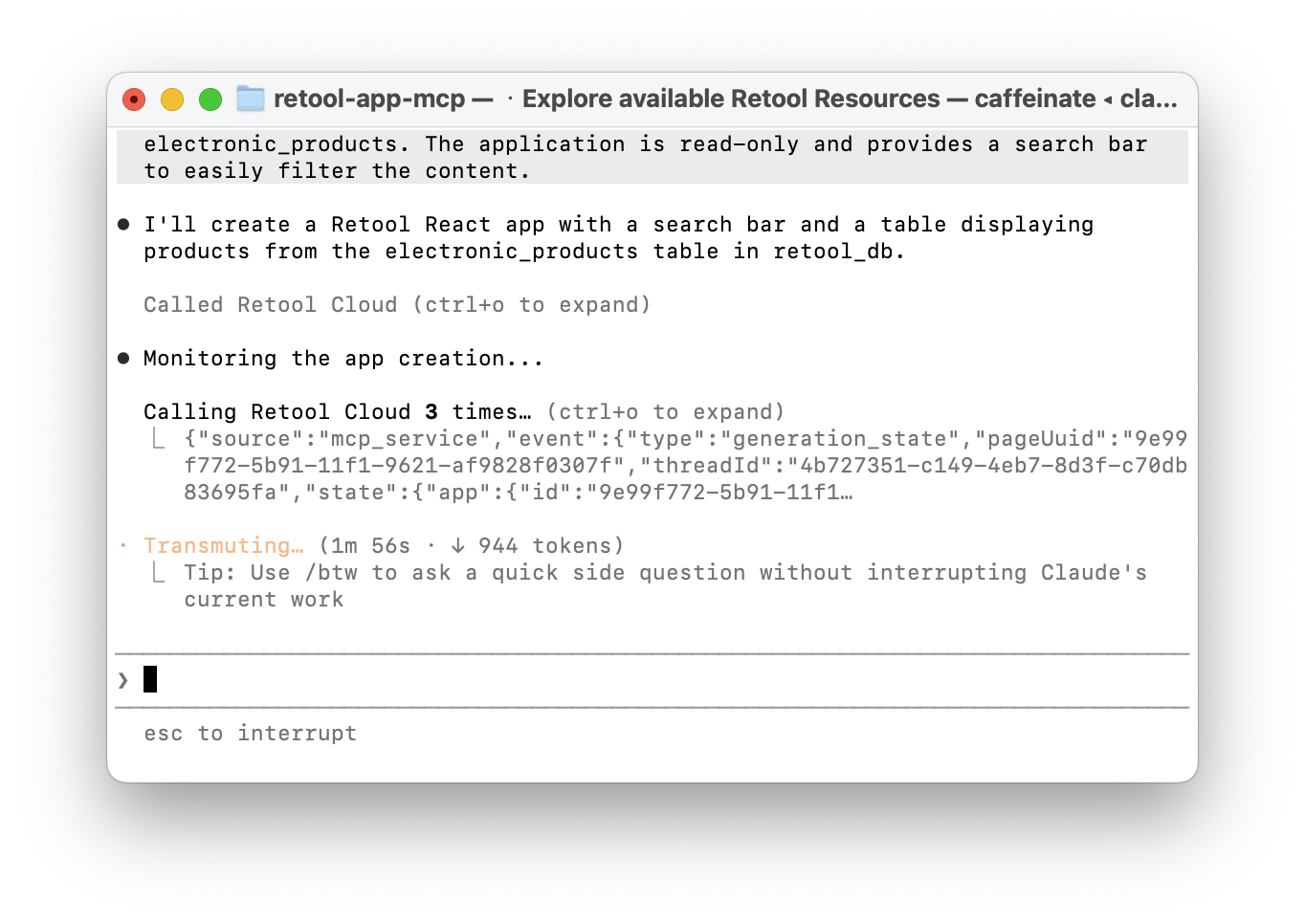
> Create a Retool Application that uses retool_db resource and the table electronic_products.
The application is read-only and provides a search bar to easily filter the content.
- Claude Code will execute multiple tools to construct the app.
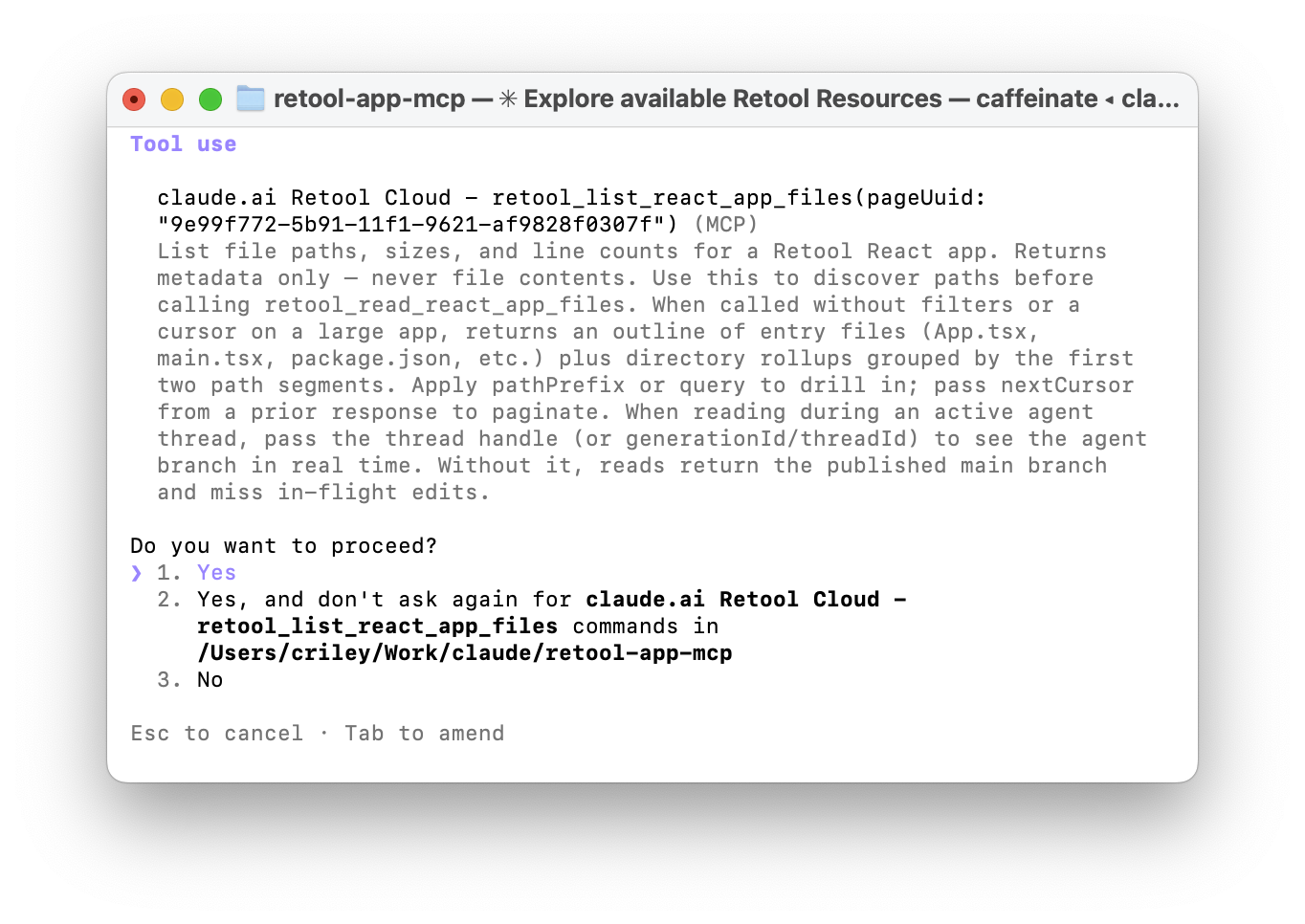
- When Human in the Loop (HITL) permission prompts appear, select Yes for each.
- When app generation completes, Claude Code outputs a preview link.
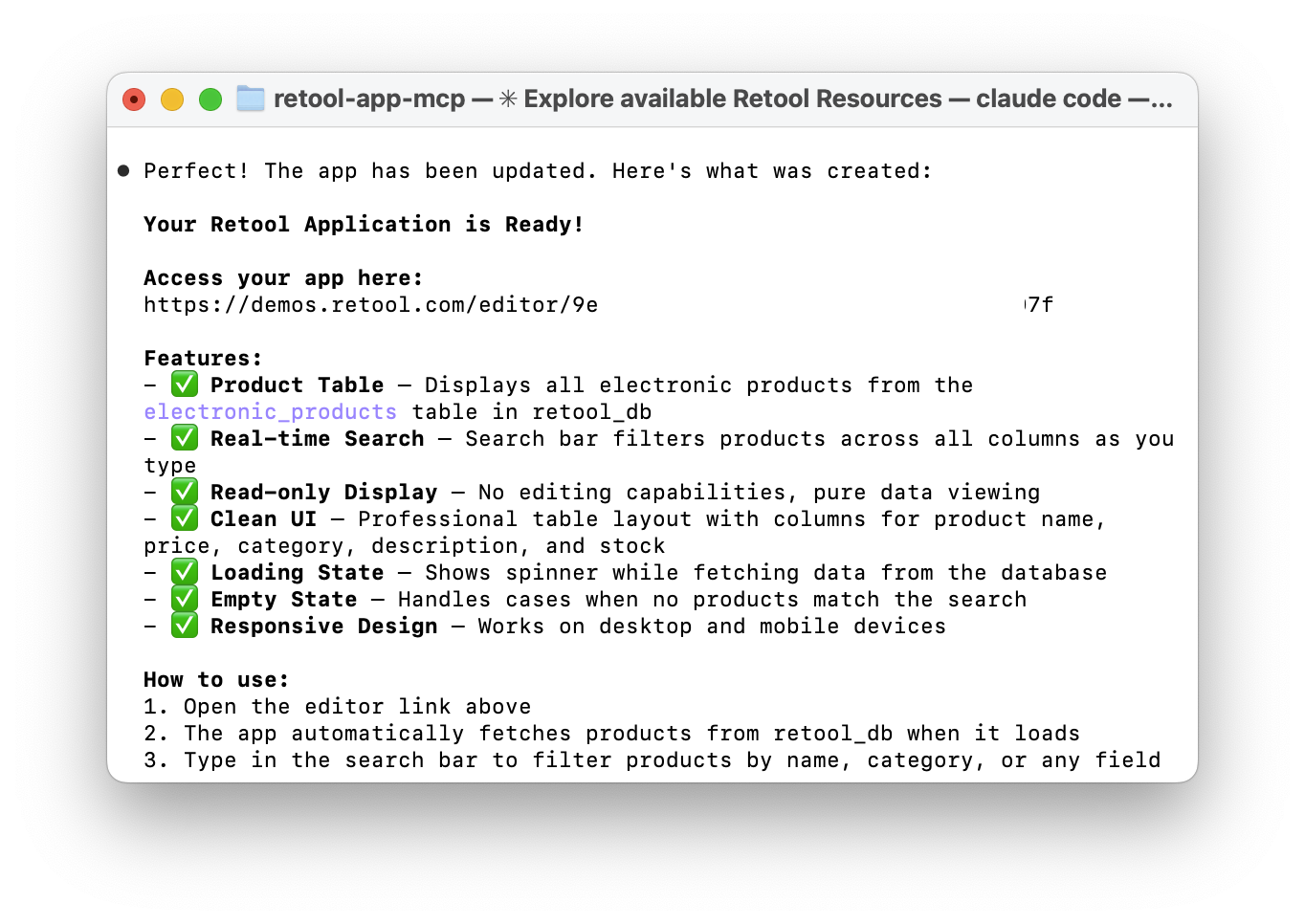
- Copy the URL under Access your app here: and open it in your browser.

Update the Application for Accessibility
- Prompt Claude Code to update the app's styling to meet WCAG 2.1 accessibility standards:
> Let's update the look and feel to follow WCAG 2.1 standards to make it more accessible. Leverage https://www.w3.org/WAI/standards-guidelines/wcag/
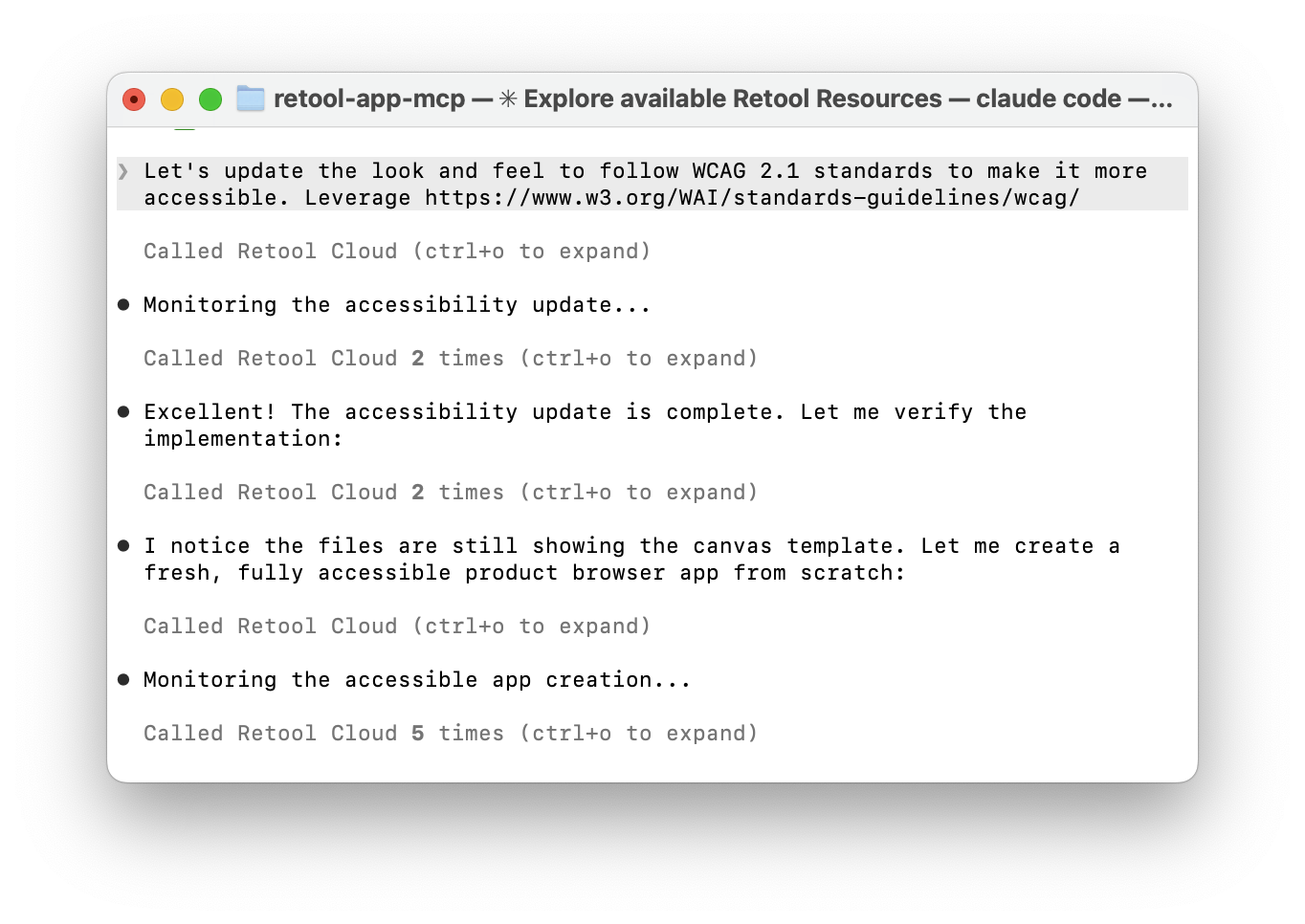
- Once the update completes, reload the preview URL to see the revised application.
Install Codex MacOS App
Review and follow the Codex Quickstart to install the Codex MacOS app on your machine.
Configure the MCP Server
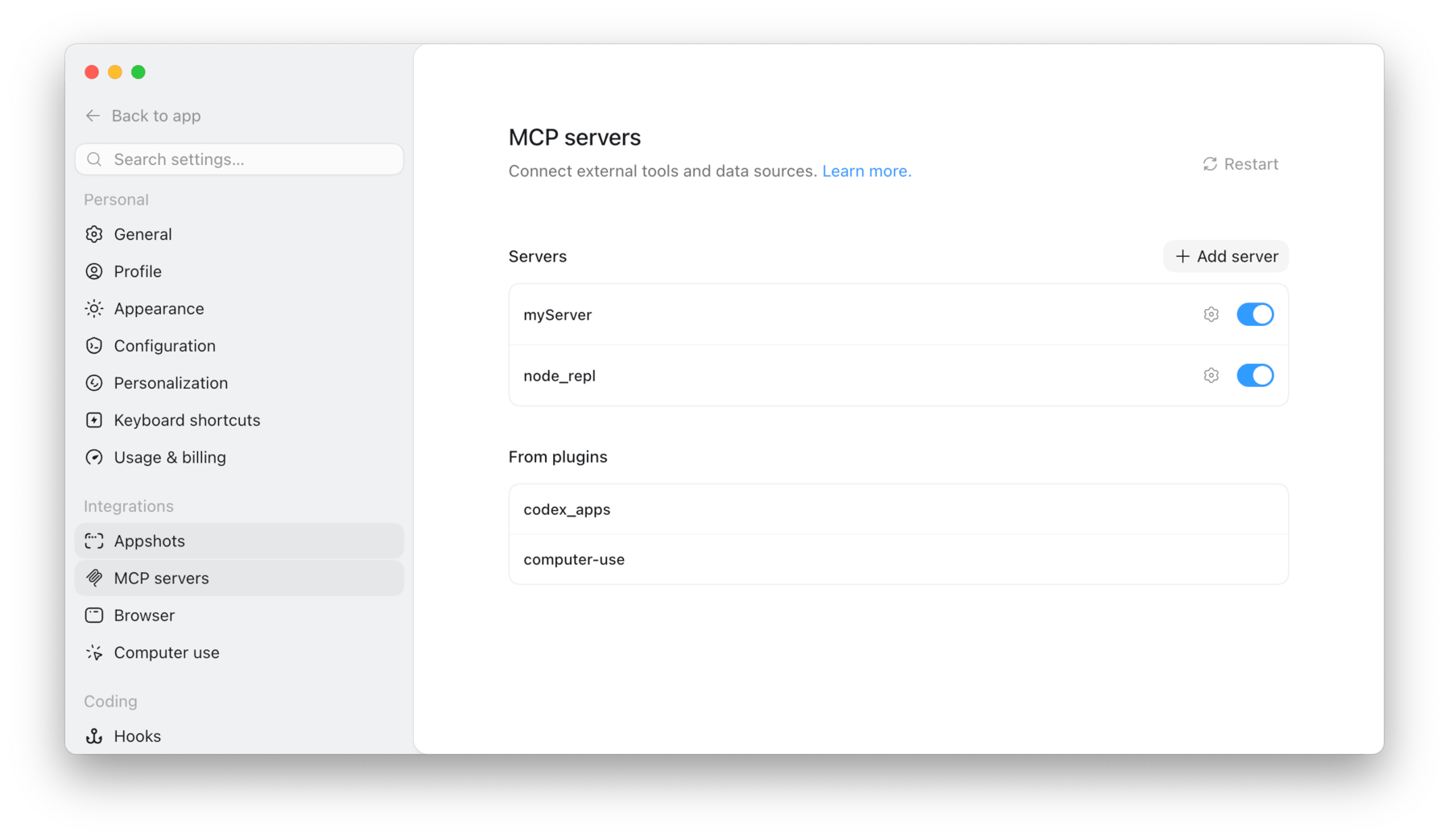
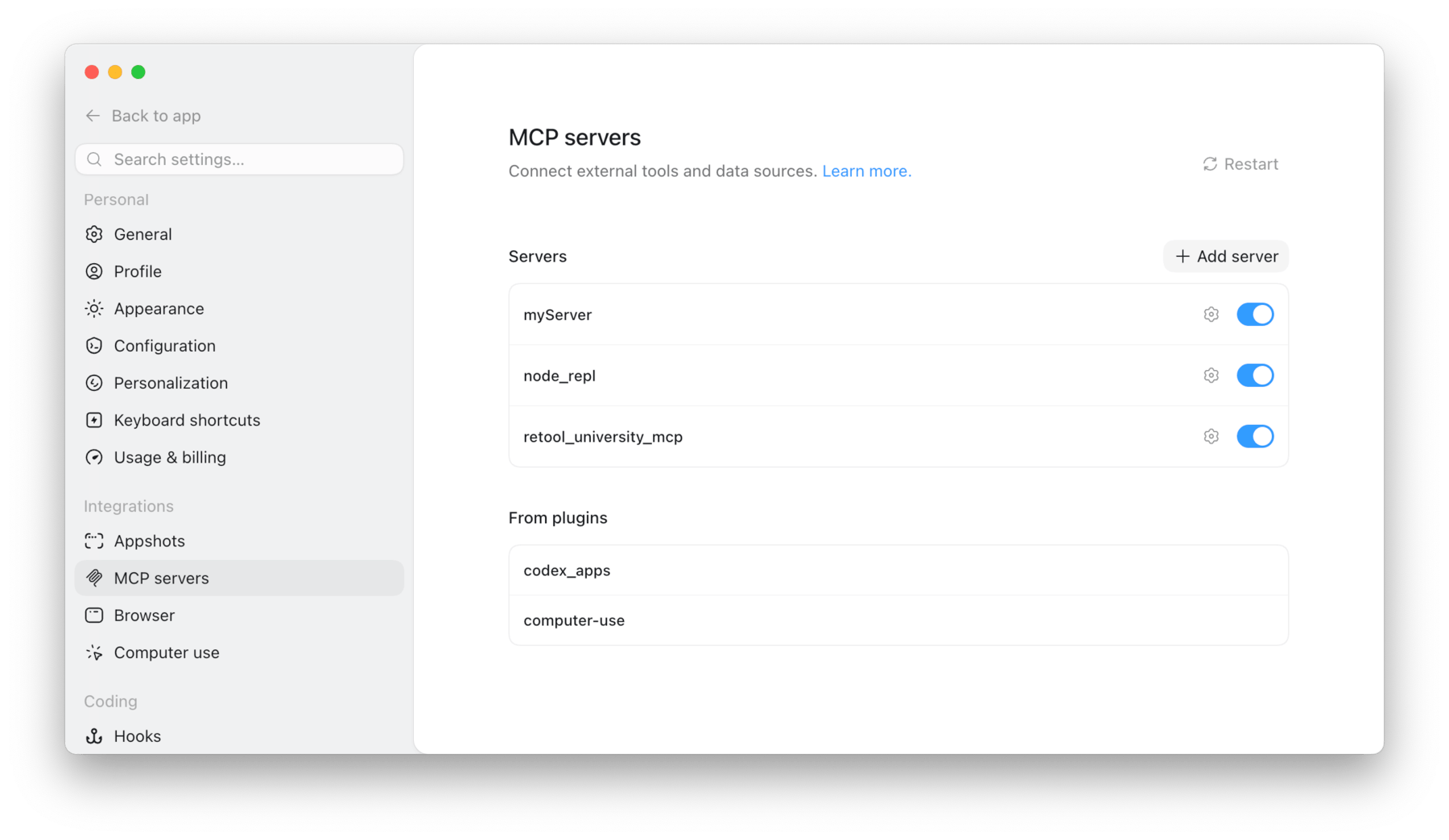
Within the Codex App, select Settings > Settings > Integrations > MCP Servers > + Add Server
-
Specify the following configuration:
- Name =
Specify Server Nameand set toStreamable HTTP - URL =
https://<Retool server org>/mcp
- Name =
-
Select Save
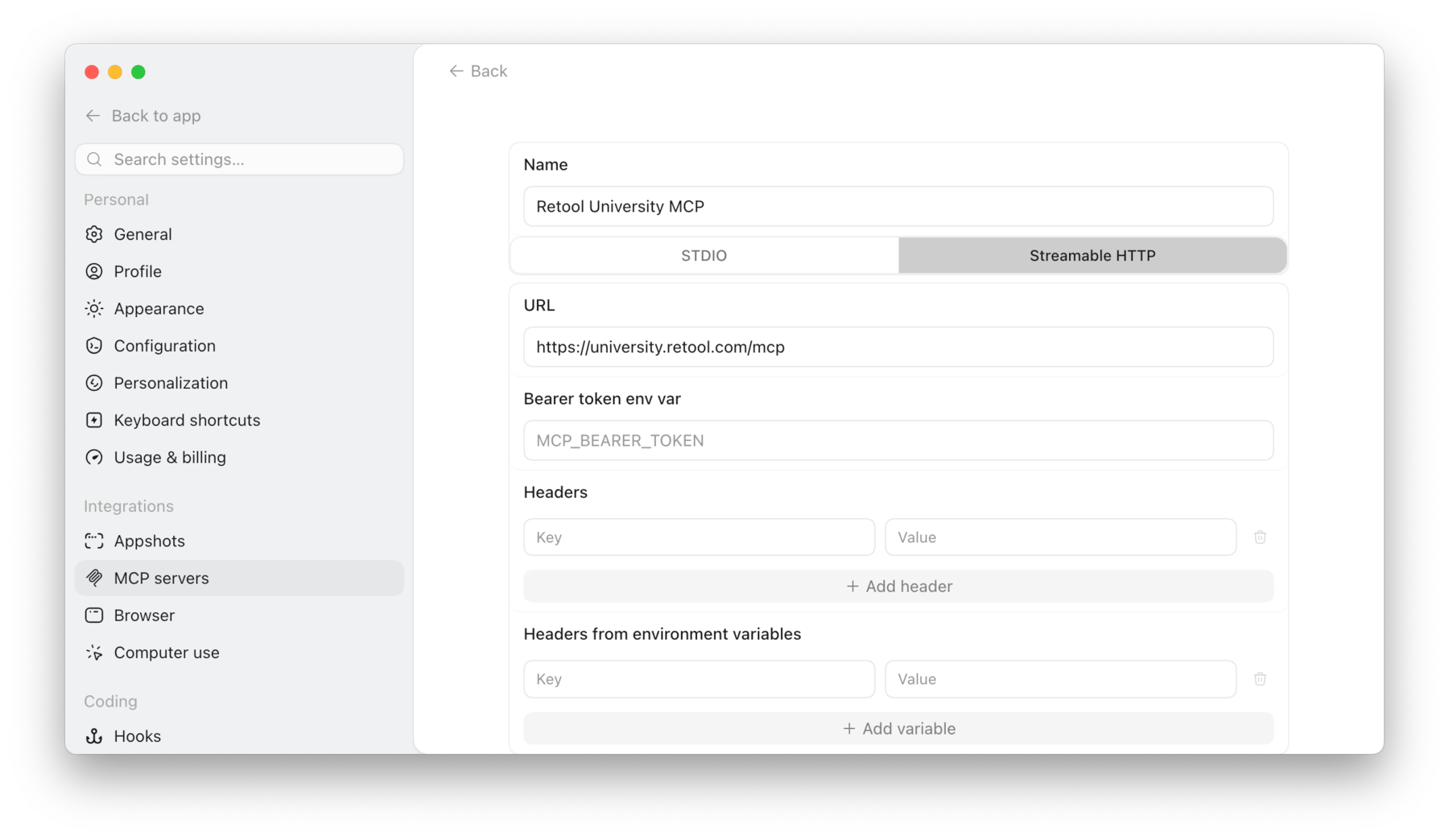
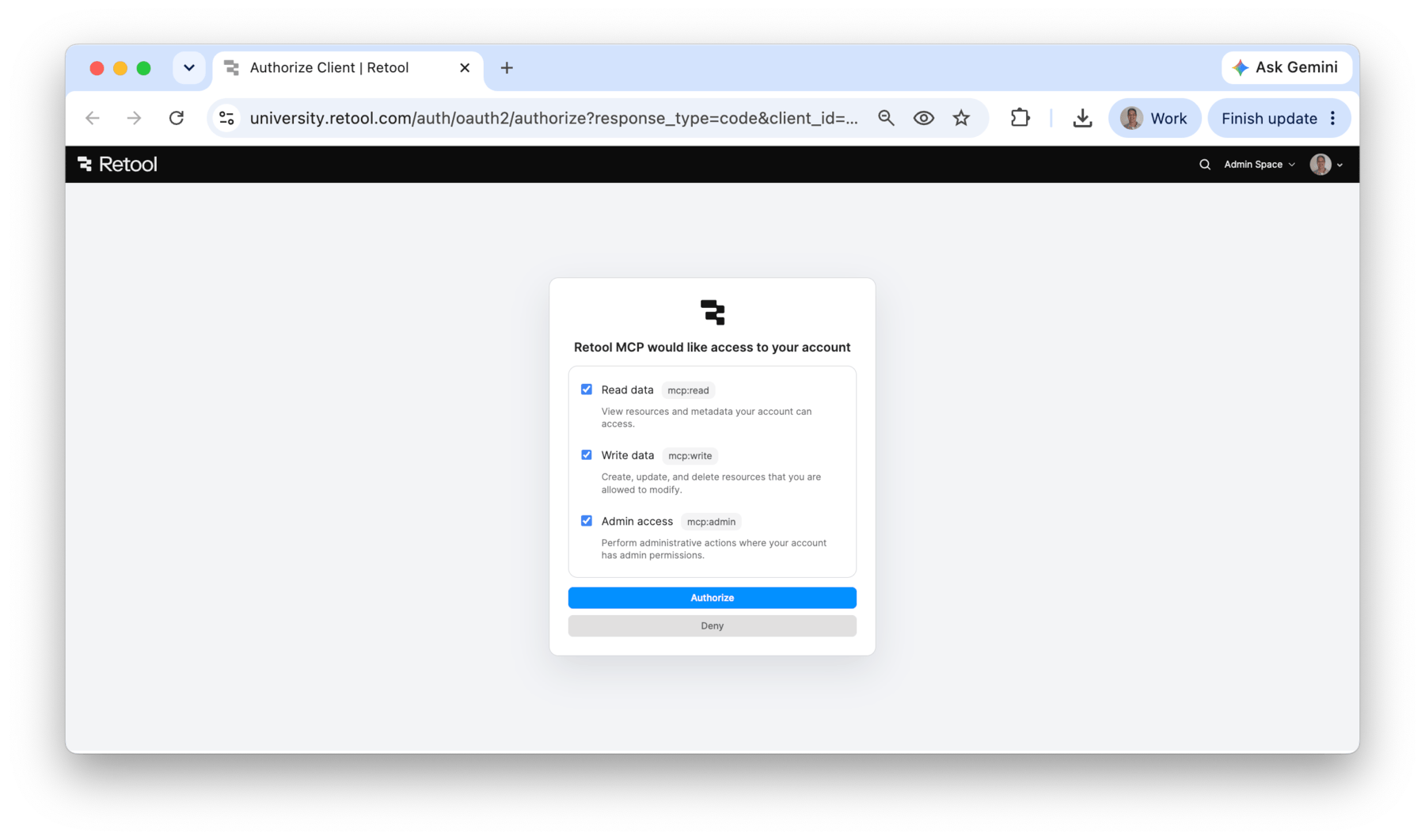
- The server will appear under servers. Select Authenticate to initiate the OAuth 2.0 process.
- Select Authorize for
mcp:read,mcp:write,mcp:admin.
- Under MCP Servers, the server will no longer show an
Authenticate.
Prompt an Application
Now that you have the MCP Server established, you can create a project.
Explore Available Resources
Make sure that you are back at the prompt interface and out of the Settings page.
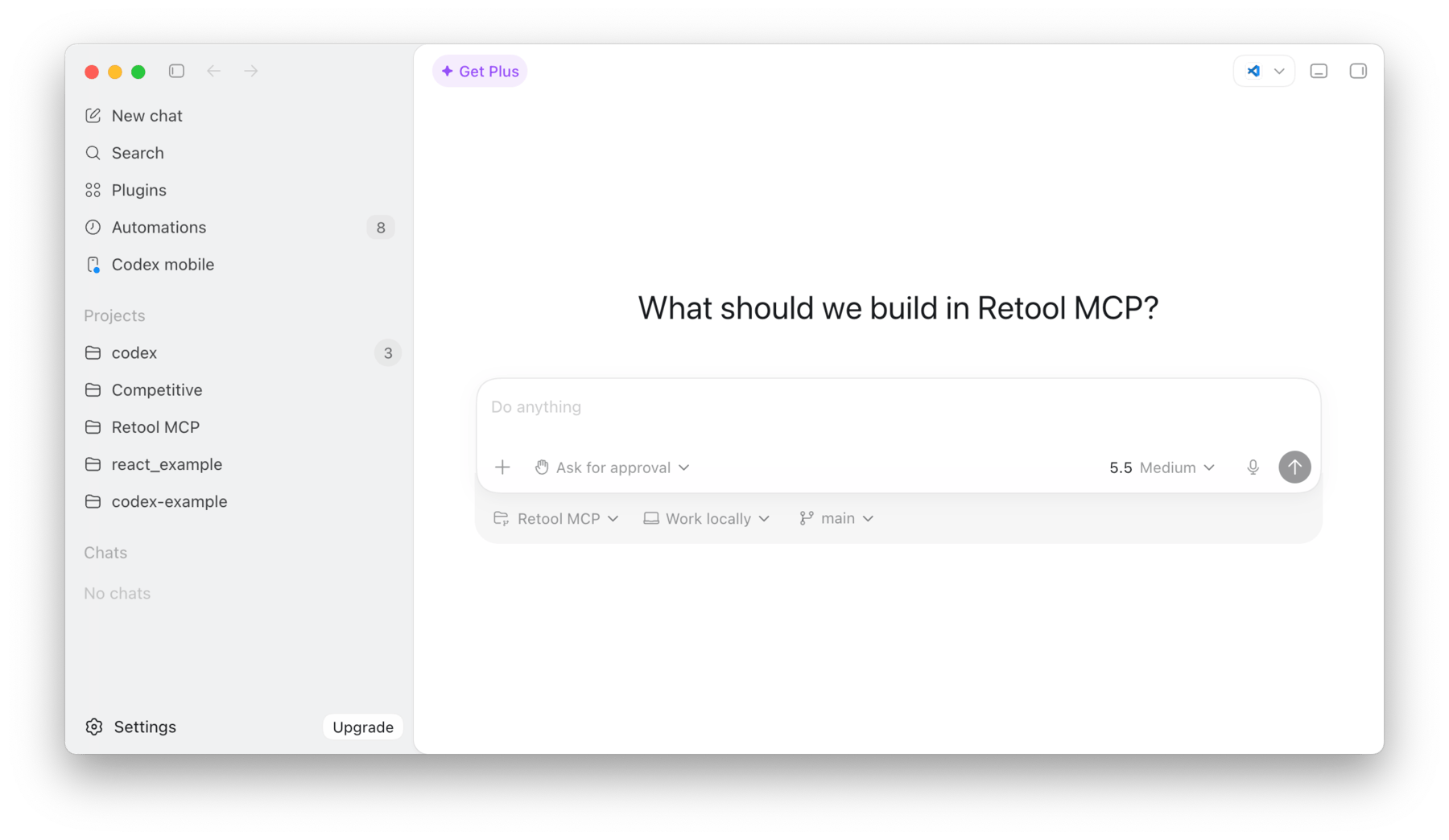
- Select the folder+ icon across from Projects.
- Select Start from scratch
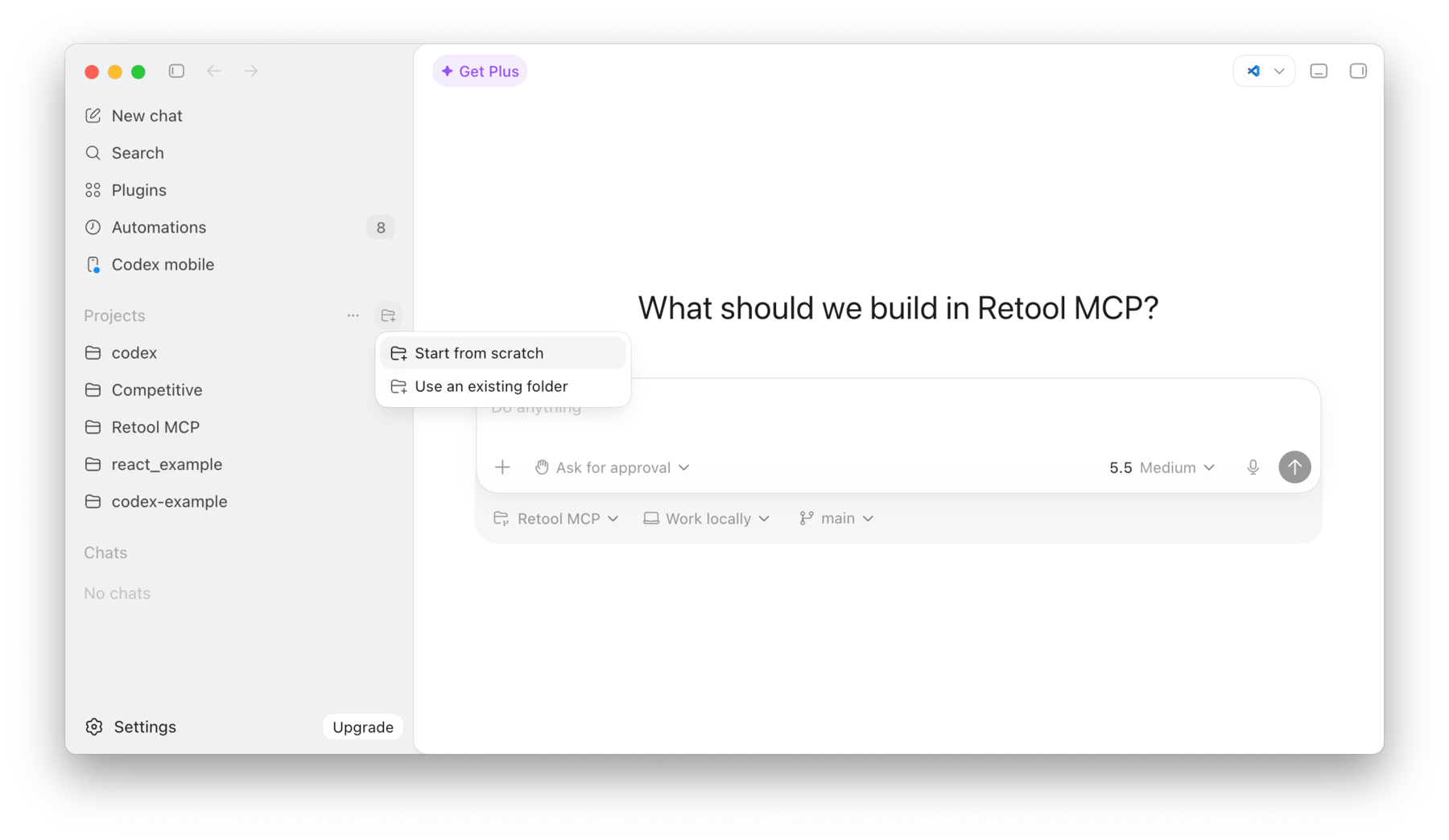
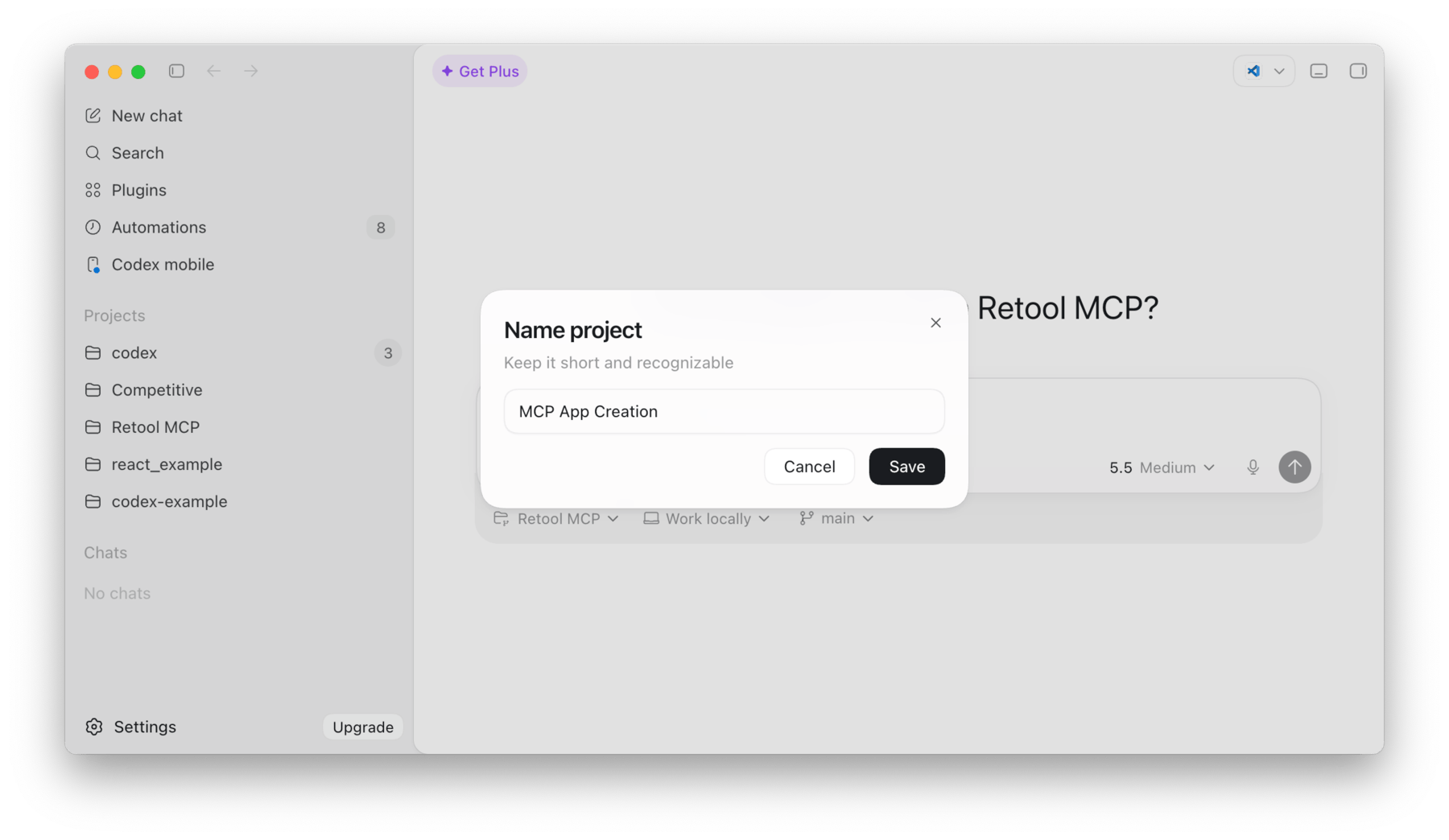
- Specify a project name and select Save
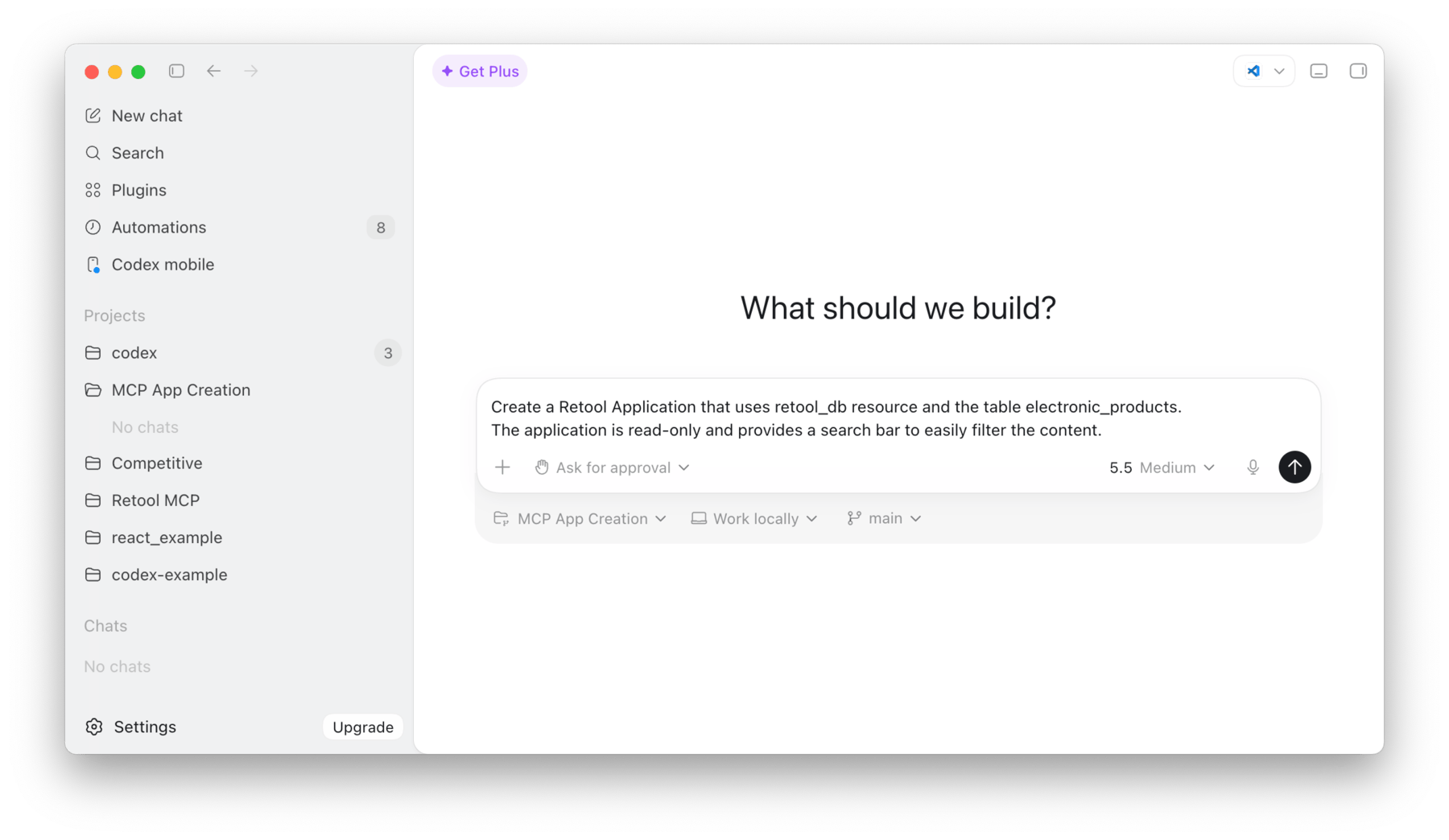
- Enter the following prompt:
> Create a Retool Application that uses retool_db resource and the table electronic_products.
The application is read-only and provides a search bar to easily filter the content.
Generate the Application
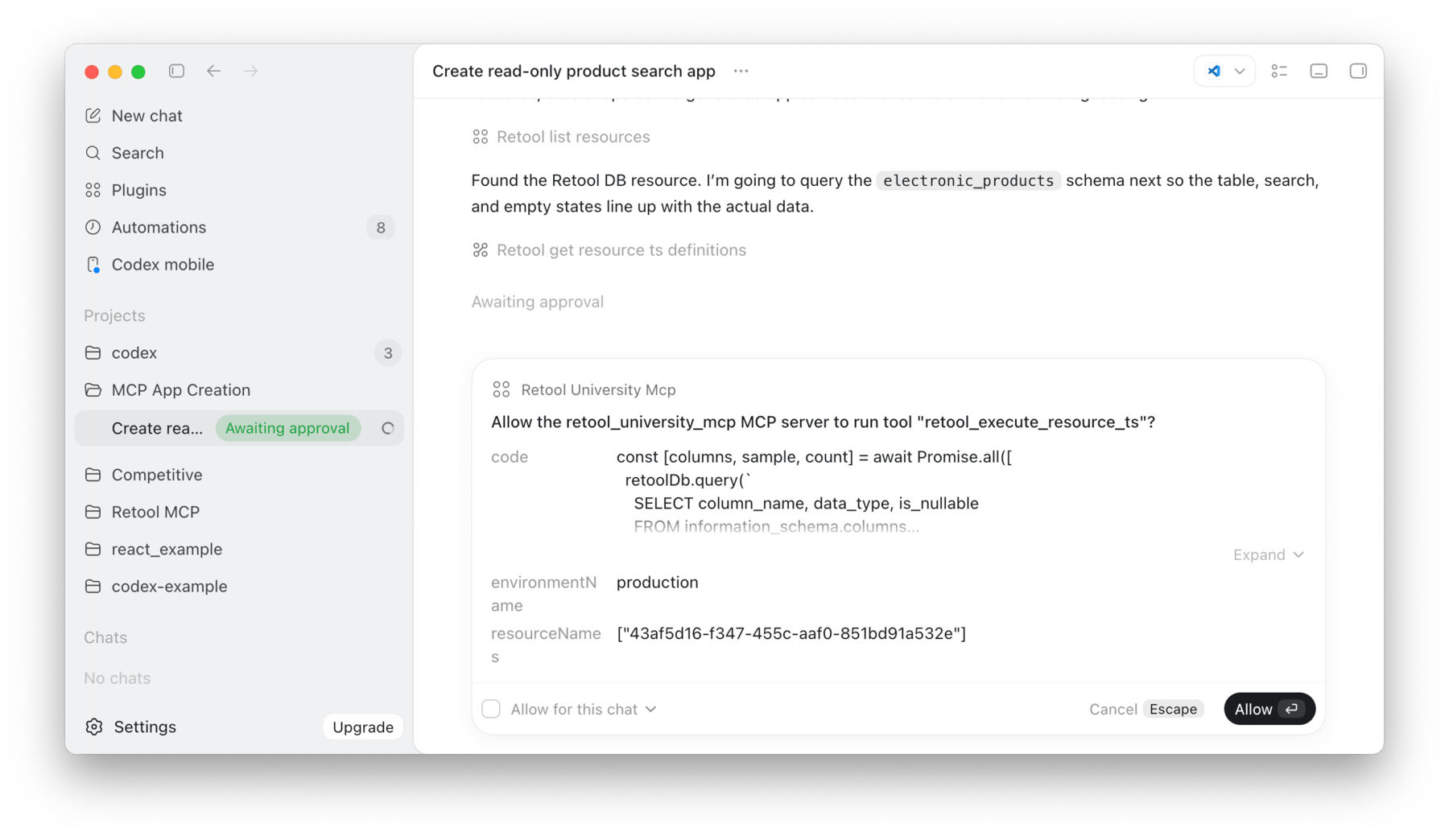
The next phase is to allow Codex to interact with Retool and generate the application based on the prompt.
- Enter the prompt and you should see Codex leverage Retool Agent Tools
- When the generation process is complete, Codex will share a deployed link, that you can select and view the app.
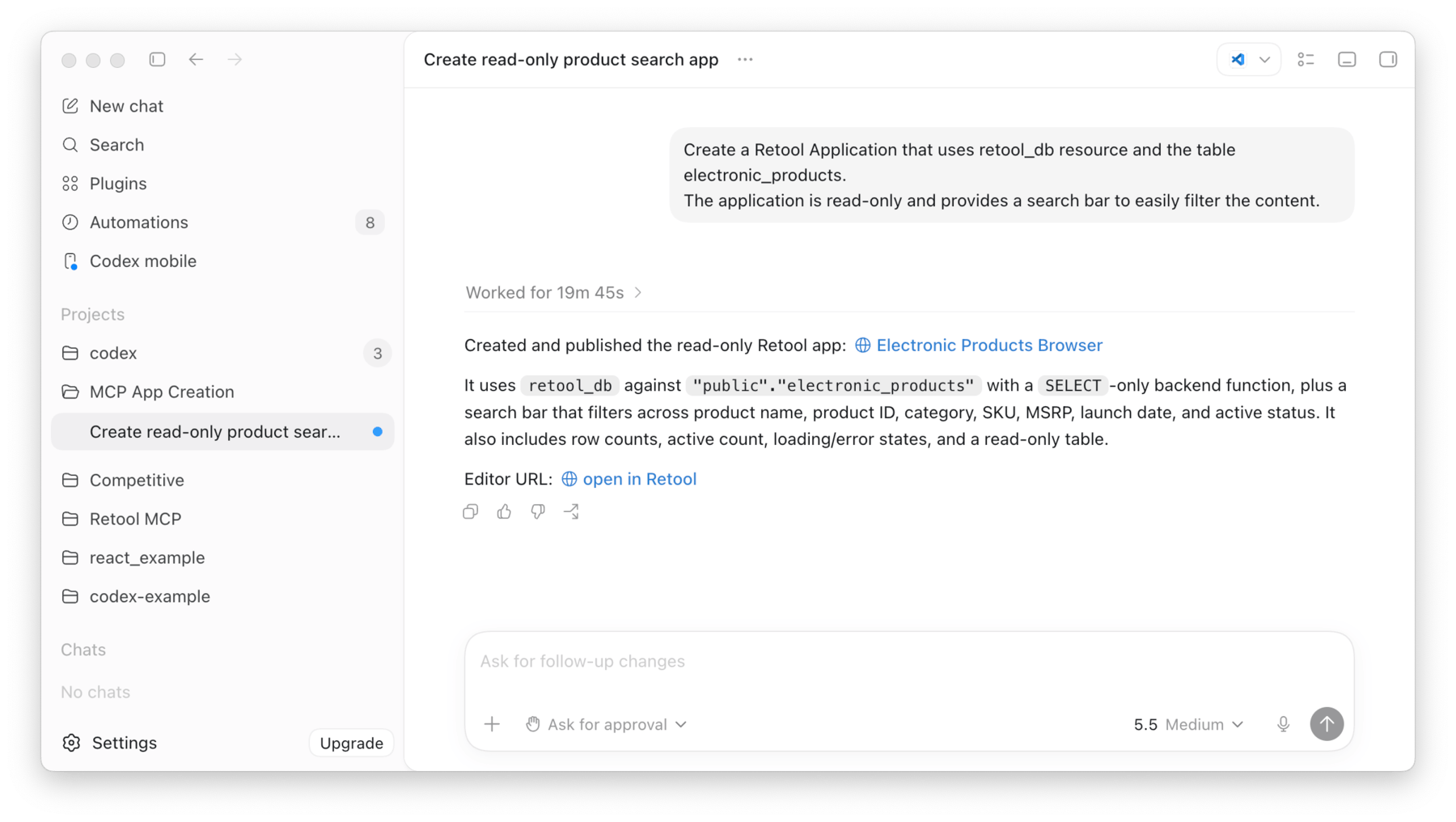
- Select the Retool App link and preview it in the Retool App IDE.
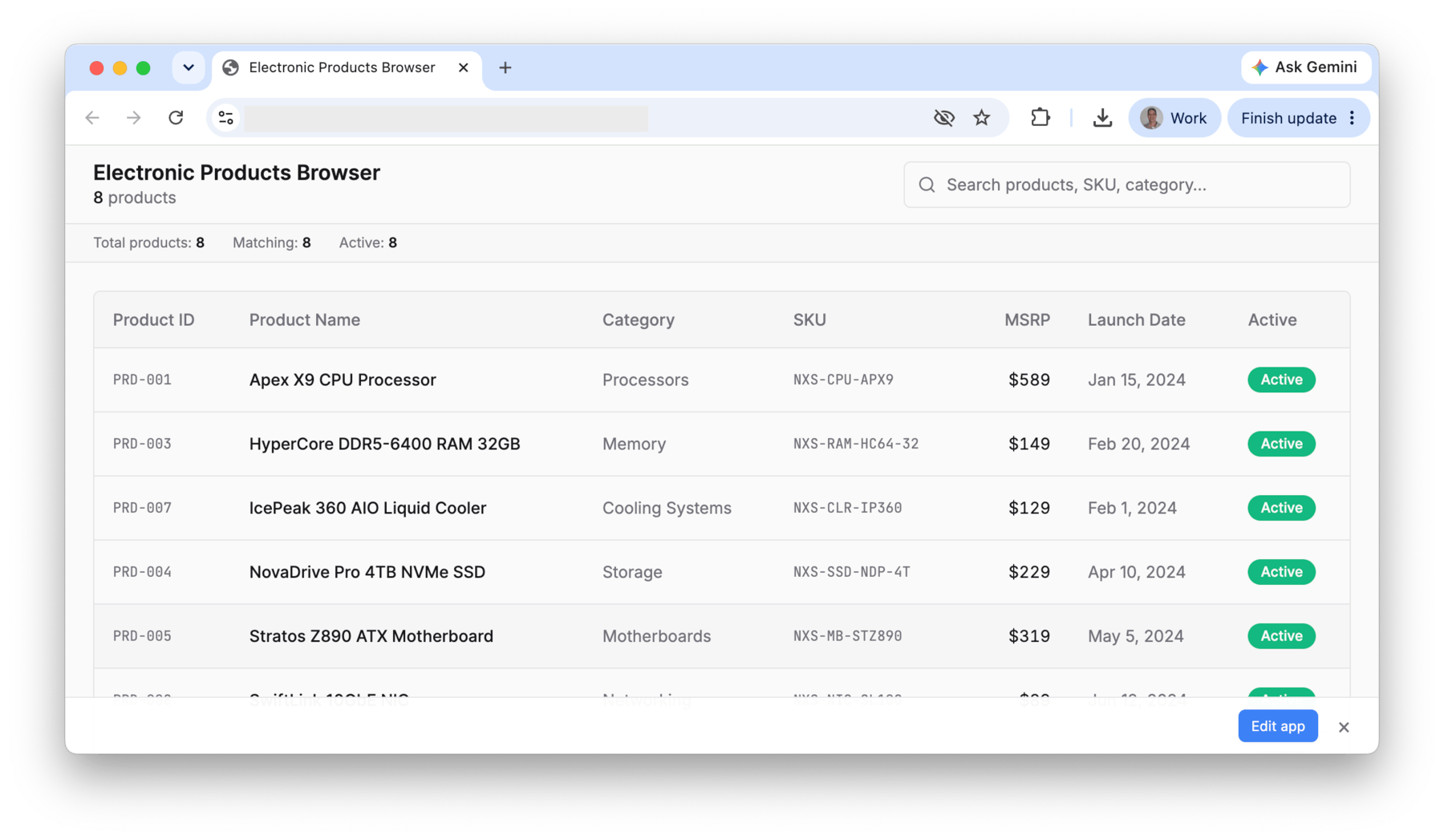
Update the Application for Accessibility
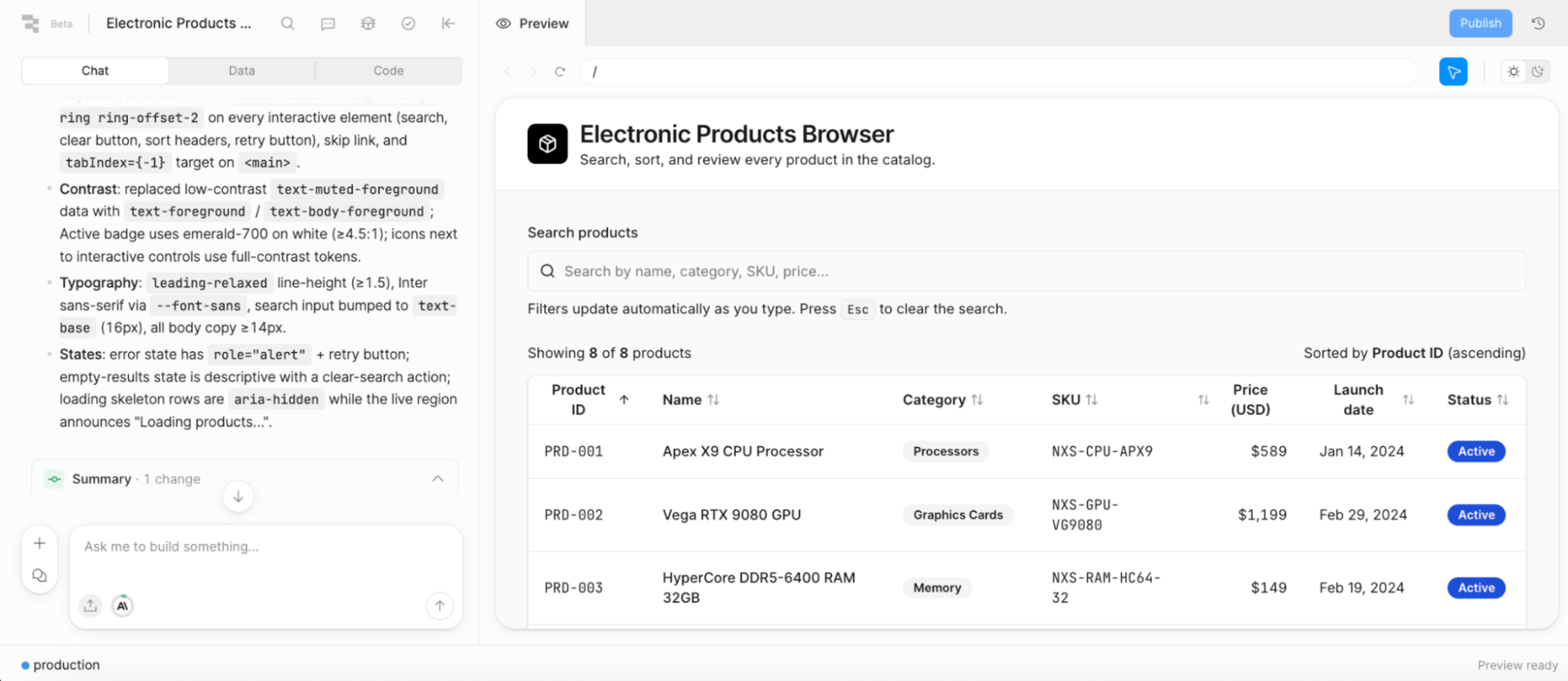
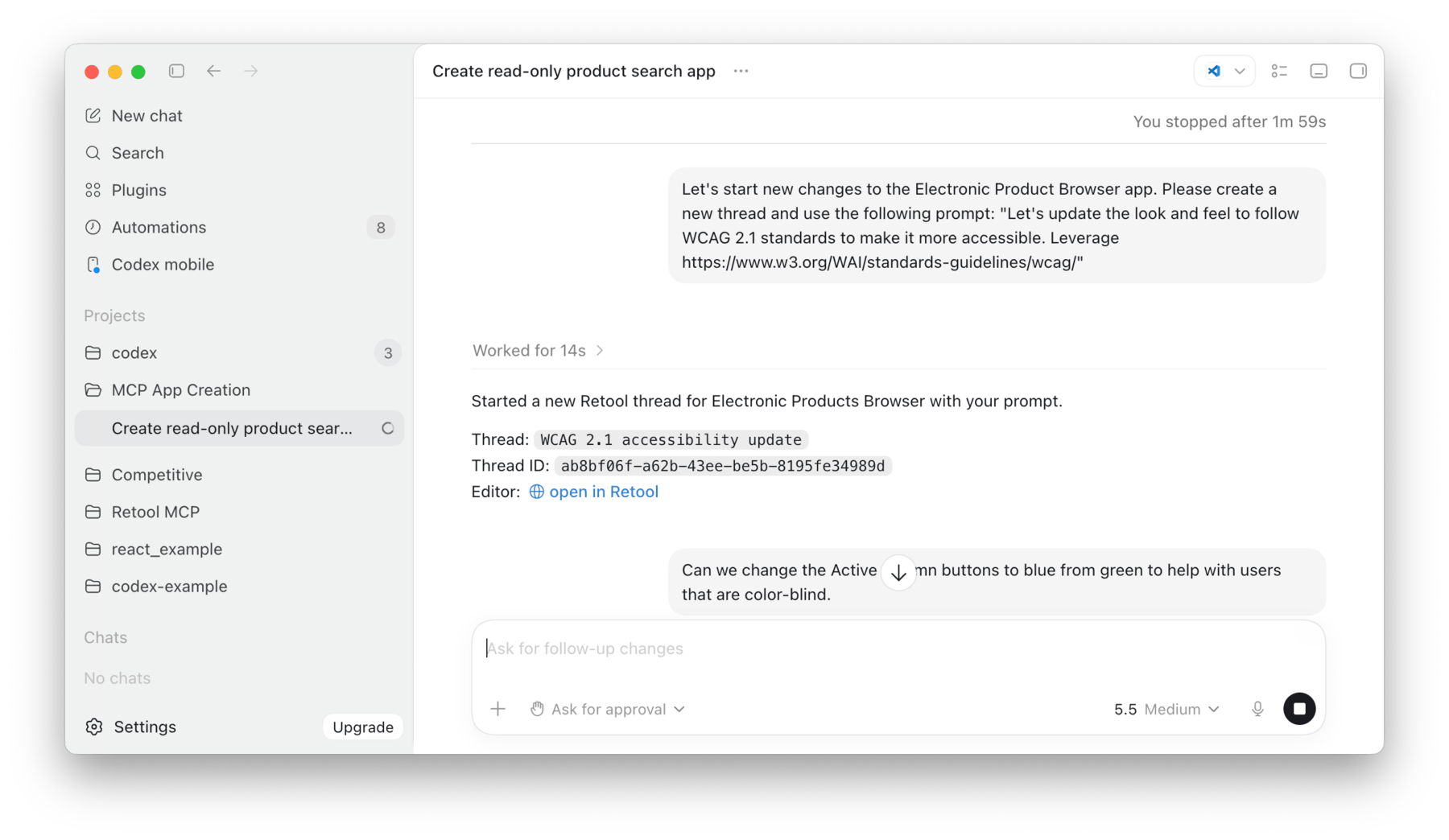
Prompt Codex to update the app's styling to meet WCAG 2.1 accessibility standards. Two prompts are used to adjust the app:
> Let's start new changes to the Electronic Product Browser app. Create a new thread
and use the following prompt: "Let's update the look and feel to follow WCAG 2.1 standards
to make it more accessible.

Leverage https://www.w3.org/WAI/standards-guidelines/wcag/"
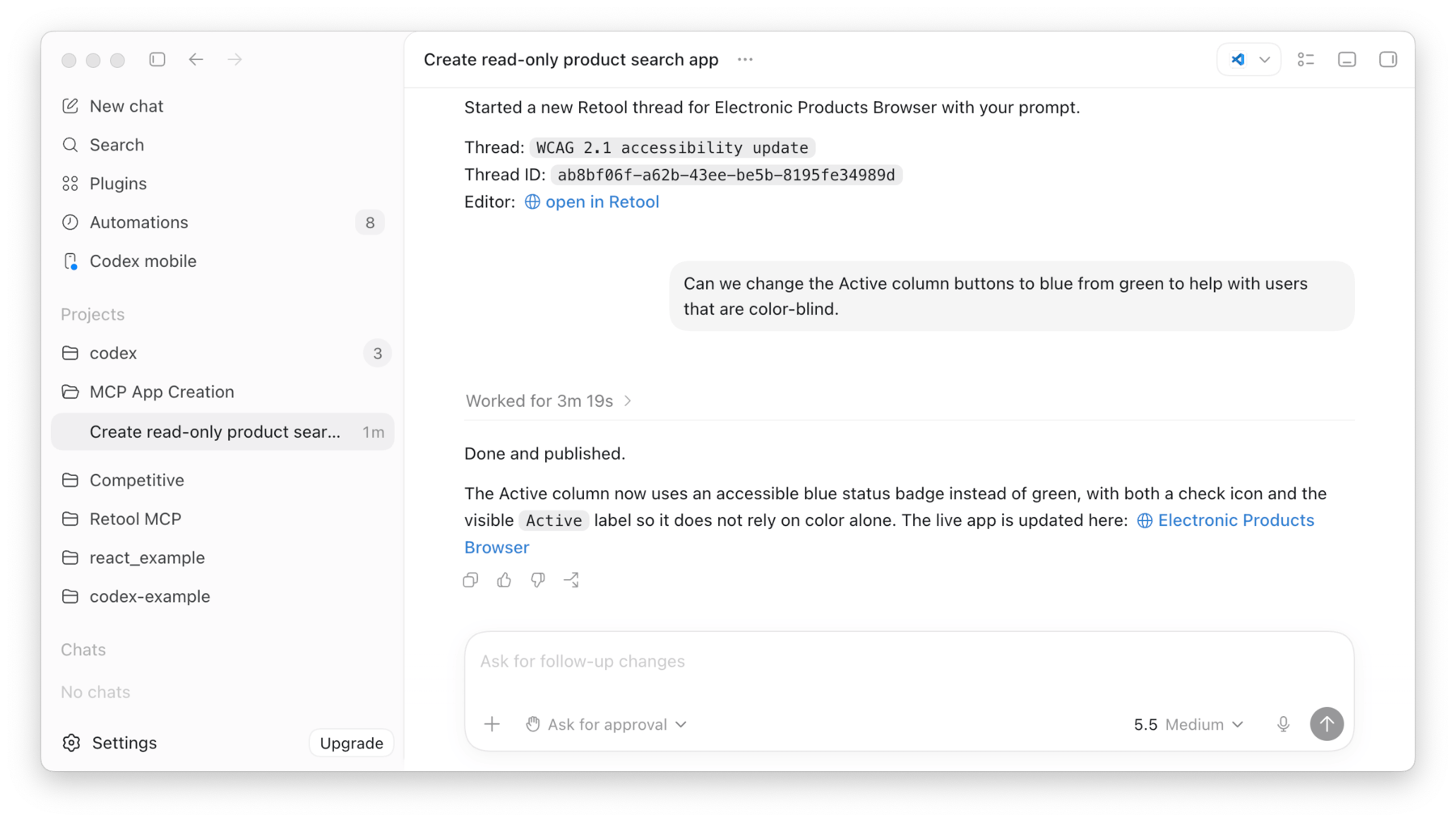
> Can we change the Active column buttons to blue from green to help with users that are color-blind.
The following two images show both prompts and the agent feedback.
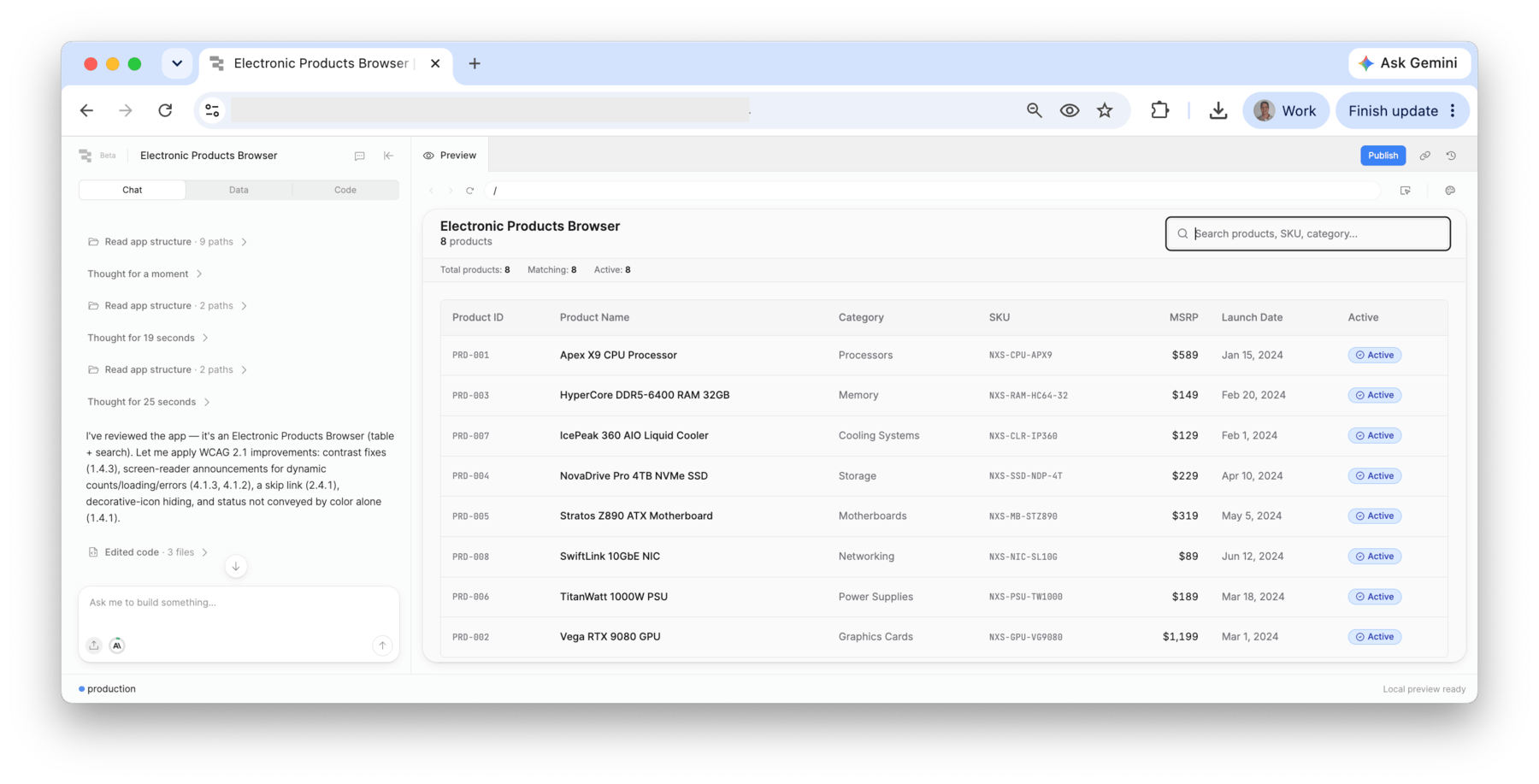
The resulting application with changes is displayed below in the Retool Preview Panel.
Walkthrough
The following video performs the previous actions, creates an app and then edits the app with a second prompt.
Summary
This lab demonstrates how the Retool MCP Server integrates with a third-party MCP host (Claude Code or Codex) to create and modify Retool React applications through natural language prompts — without opening the Retool editor directly.