Self-hosted Retool 4.0 stable update
The following patch is now available on the Stable release channel:
Update your Retool instance to apply the latest bug fixes and security patches.
Updates, changes, and improvements at Retool.
Refer to the stable and edge release notes for detailed information about self-hosted releases.
The following patch is now available on the Stable release channel:
Update your Retool instance to apply the latest bug fixes and security patches.
Organization admins on Team and Business plans can now purchase additional AI credit packs directly by clicking on Buy credits from Settings > Plans & Billing > under the new AI Credits tab.
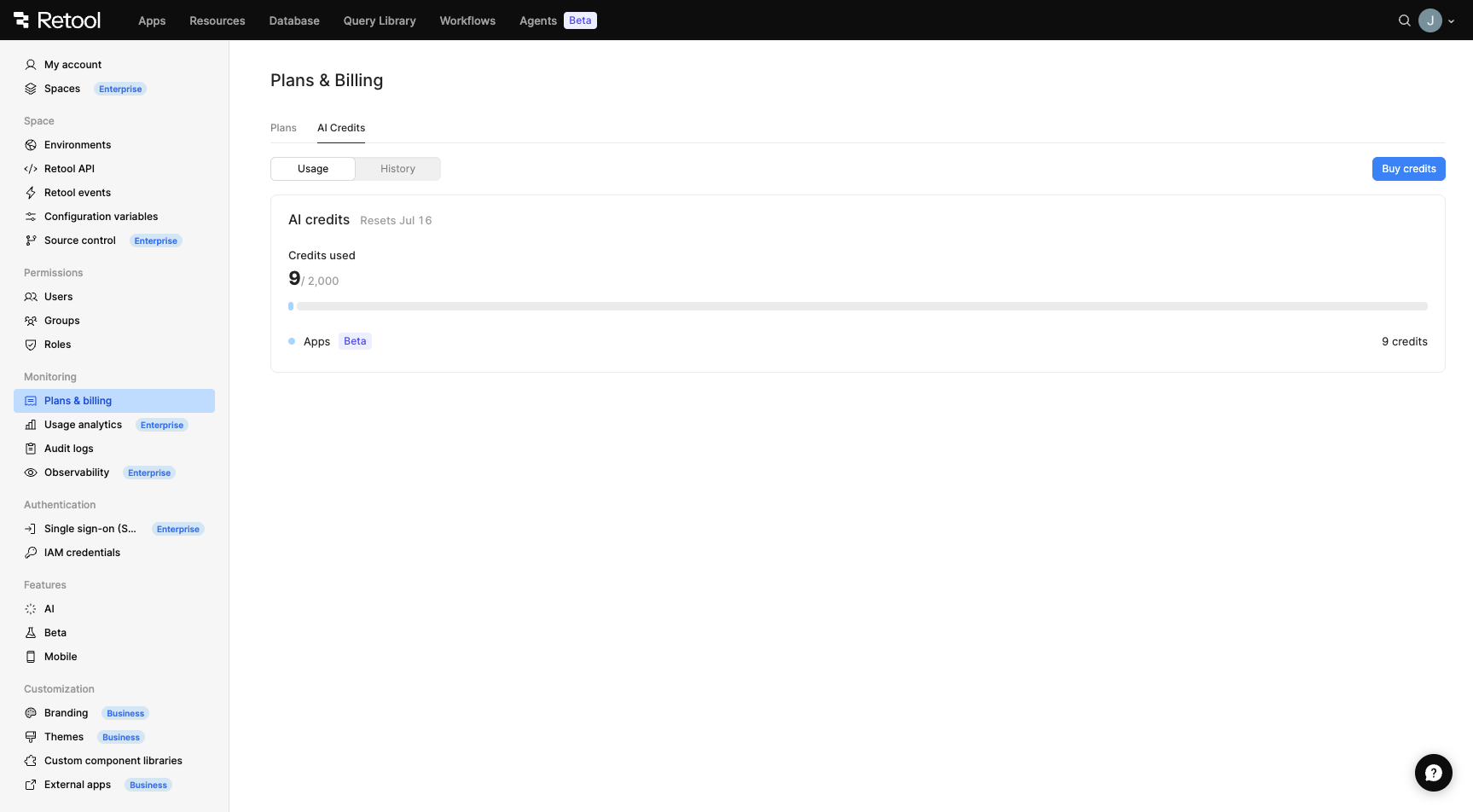
AI Credits tab with Buy credits button
Credit packs are sold in increments of 1,000 credits at $100 per pack. Purchased credits are added to your organization's shared pool and are consumed after your monthly allotment runs out, with the oldest (soonest-expiring) pack used first. Credit packs expire at the end of your next monthly billing cycle (between 30–60 days after purchase), depending on where you are in your billing cycle when you buy them.
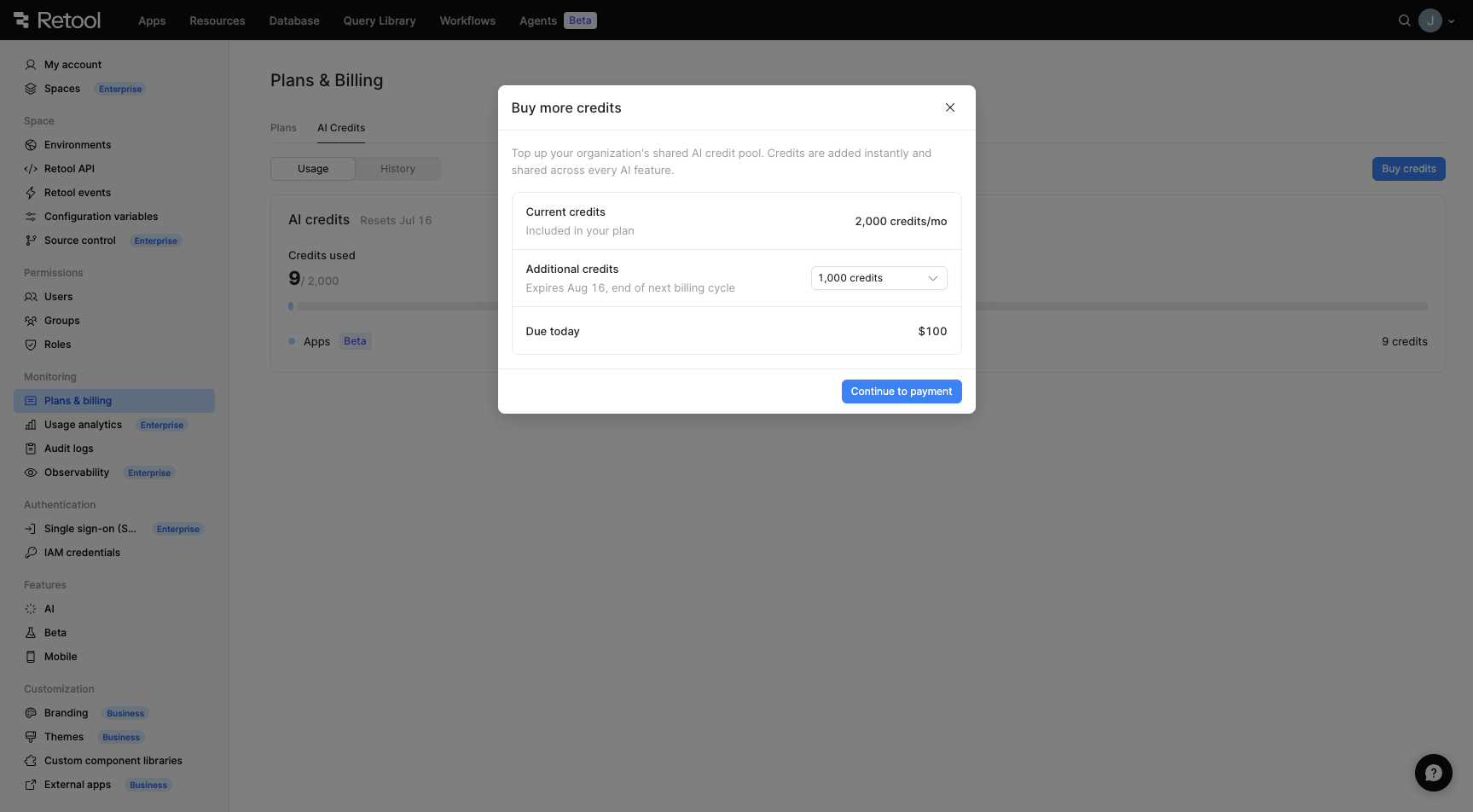
Buy more credits modal
When your organization's credits run out, admins will see a banner prompting them to purchase additional credits or upgrade their plan. Users who are not admins will be directed to contact their admin.
Credit pack purchasing is available on cloud plans using Retool-managed keys. Free plan organizations must upgrade to Team or Business to purchase credit packs. Enterprise customers should contact their account executive.
For more information, refer to the AI credits documentation.
Retool now supports audio and visual browser notifications for app building. If you prompt Retool to build an app and navigate away from the tab, a ping sounds and a red dot appears on the favicon of the tab when you need to return to it. Now, you can multitask and return to the app builder only when your input is required.
This notification occurs at the following key points in the building process:
To turn off the notification sound, click the Model options selector in the prompting box and toggle off the Sound notifications setting.
Self-hosted Retool 4.0 includes an automatic database migration that prepares your instance for upcoming improvements to how Retool handles organization permissions. This migration runs in the background during deployment and does not affect any functionality.
Retool strongly recommends upgrading to self-hosted Retool 4.0 before upgrading to a future release. Doing so allows the migration to run as intended, giving you time to identify and resolve any issues before they become critical. If you attempt to upgrade a pre-4.0 release to a post-4.0 release, this may result in migration issues which can impact the deployment until resolved.
When you deploy Retool 4.0 stable, the migration runs automatically in the background. In most cases, no action is required.
If the migration fails—even for a single space within your instance—all organization admins will see a notification banner across all settings pages to indicate that the database is in an inconsistent state. This notification includes a link for an admin to trigger the migration again.
The database integrity check can take approximately three hours from upgrade completion. If the check fails, the notification banner is displayed. For larger instances, this check can take up to 15 hours.
Should the migration fail, no existing functionality is impacted. In most cases, an admin can trigger the migration again. The option to trigger a migration again is disabled if it is already in progress so it cannot be triggered multiple times.
If re-running does not resolve the issue, contact our support team as soon as possible.
Any migration failures must be resolved before upgrading to a future stable release. Attempts to upgrade to a future release with a failed migration will fail and would require rolling back until the migration failure is resolved.
If you have an existing Retool deployment instance, this FAQ can provide guidance as you prepare an upgrade plan.
No. Retool 4.0 introduces the agent sandbox and js-executor services, both of which require a custom Linux seccomp profile. AWS Fargate for Amazon ECS does not support custom seccomp profiles, and Amazon ECS on EC2 does not meet the other requirements for a supported production deployment.
There is no in-place upgrade path from ECS to Retool 4.0. You must migrate to a Kubernetes deployment before upgrading. Retool's Terraform blueprints are the officially supported path for new Kubernetes deployments.
Contact your Retool account team to plan the migration. For step-by-step instructions, refer to Migrate from ECS to Kubernetes.
No. Raw Kubernetes manifests are not a supported deployment configuration, and services introduced in Retool 4.0 are shipped and configured through the Retool Helm chart. There is no in-place upgrade path for raw manifest deployments.
You must migrate to a Helm-based deployment before upgrading to Retool 4.0. Retool's Terraform blueprints are the recommended path. If you have an existing Helm deployment, the Helm upgrade guide covers how to add the new services.
Contact your Retool account team if you need migration assistance.
Retool does not support Docker Compose for production deployments. The agent sandbox service requires resource isolation and pod-level scheduling that a single-VM stack cannot reliably provide.
If you are using Docker Compose in production, migrate to Kubernetes before upgrading. Refer to Migrate from Docker Compose to Kubernetes for step-by-step instructions.
If you are using Docker Compose for non-production or development purposes, you can upgrade in place. Refer to Upgrade your Docker Compose deployment.
Yes. All new services introduced in Retool 4.0 (the agent sandbox, JS executor, MCP server, r2 agent, and git server) are disabled by default in Helm chart version 6.11.4. Upgrading the chart without enabling them is safe and fully backward compatible.
You can enable individual services at any time after upgrading. Refer to the Helm upgrade guide for instructions on enabling each service.
Both the agent sandbox and js-executor require a custom seccomp profile on each cluster node. The profiles grant only the specific system calls each service needs and do not require CAP_SYS_ADMIN. The agent sandbox does not support privileged mode. The js-executor supports privileged mode as an alternative to the custom seccomp profile, but the custom seccomp profile is recommended.
This is significantly more secure than privileged mode. Customers who previously ran code-executor without privileged mode can apply the same approach for these services.
For the full seccomp profile breakdown and a comparison with code-executor, see Custom code execution security.
ENCRYPTION_KEY contains non-ASCII characters. Do I need to change it before upgrading?Yes. From version 3.332.4, ENCRYPTION_KEY must contain only ASCII characters. If your key contains non-ASCII characters, upgrading without rotating it first will cause decryption failures — look for ERR_OSSL_BAD_DECRYPT in your logs.
Rotate your encryption key before upgrading. Contact your Retool account team if you need assistance with the rotation process.
Yes, if your users sign in via SP-initiated SAML (starting the login flow from Retool rather than your IdP dashboard). Retool now binds each login to the AuthnRequest that started it using a short-lived, HTTPS-only cookie. Two requirements apply:
COOKIE_INSECURE. The cookie is set SameSite=None; Secure, which browsers only return over HTTPS. SP-initiated logins will fail on plain HTTP.Standard IdPs (Okta, Entra ID, OneLogin, ADFS, Ping, Google Workspace) return the required InResponseTo value automatically.
IdP-initiated logins — launching Retool directly from your IdP dashboard — are unaffected. Users must complete a login within 10 minutes of starting it.
To disable this validation: set DISABLE_SAML_INRESPONSETO_VALIDATION=true and restart.
Temporal-in-Helm has been removed in Retool 4.0. Retool no longer ships a Temporal cluster as part of the Helm chart. You must migrate to an external Temporal provider before or during your upgrade.
Retool supports two options:
After upgrading to Retool 4.0, an admin user must complete Temporal setup from within Retool: click the Workflows nav item and follow the in-product setup steps. A valid license key is required.
If you have Temporal-in-Helm data (workflow history) you want to preserve, contact your Retool account team before upgrading.
You can now use Retool's MCP server to import React apps directly from your agentic coding environment.
Open a React app, and ask Retool to import the app. Retool guides you through the process of selecting the appropriate resources, and sends you a link to the newly imported app in the app builder. From there, you can make tweaks to the generated app, and securely publish the app using the MCP server or from the app builder.
Retool 4.0 is the most significant infrastructure change to self-hosted Retool since launch. It introduces the new app builder built on React, with AI-assisted building and a real-time collaborative editing environment. These features are powered by a set of additional services: the agent sandbox, JS executor, MCP server, and r2 agent. These services run alongside other Retool containers and require Kubernetes with Helm chart 6.11.4 or later.
For new deployments: Retool now provides Terraform blueprints that automatically provision all required AWS infrastructure (VPC, EKS cluster, RDS, S3, load balancer, ACM certificate) and deploy Retool via Helm. This is the recommended path for production.
For existing deployments: The upgrade path depends on how you're currently deployed. New services are disabled by default so you can upgrade the chart first and enable them when ready. Some deployment configurations require migration before upgrading.
In addition, a database migration is performed to prepare for upcoming improvements to organization permissions. This migration does not affect any functionality within this release but any migration issues must be resolved before attempting to upgrade to a future release.
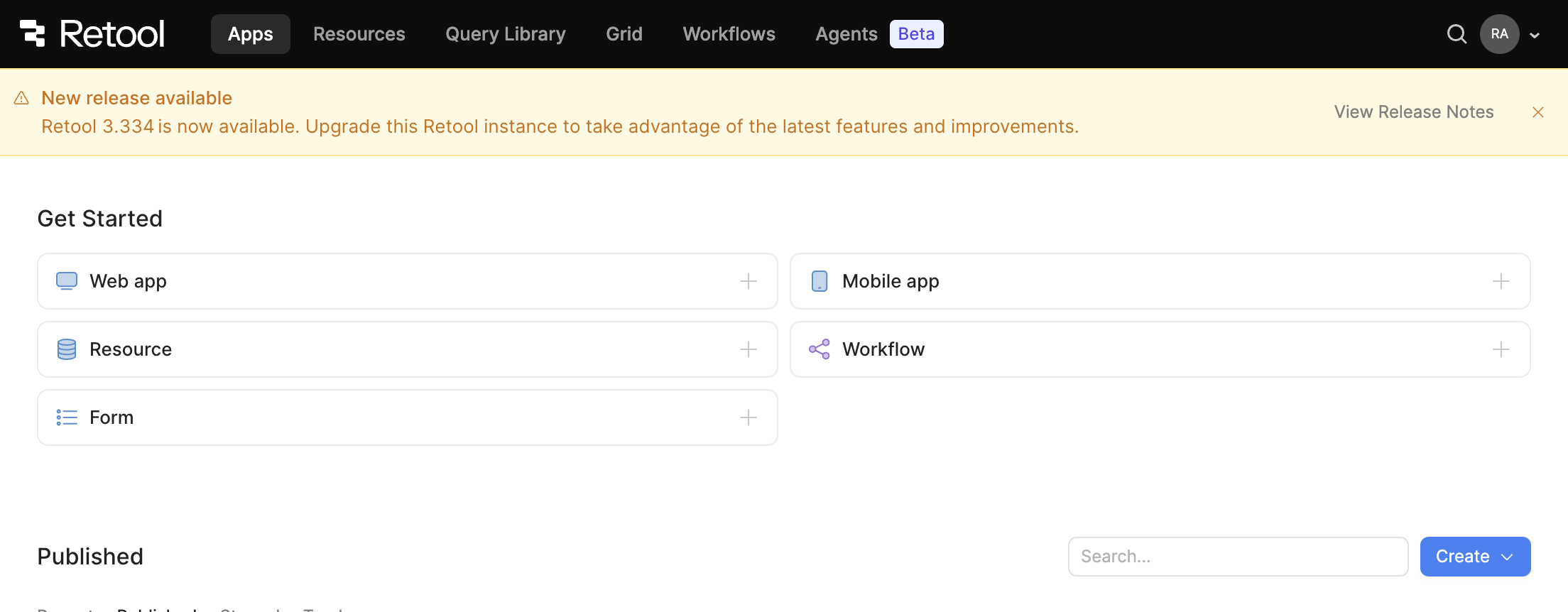
Self-hosted admins now see an Update available banner on the Retool home page when a newer release or patch update is available for their instance.
The banner shows the available version and links directly to the relevant release notes. Admins can dismiss each notification individually — dismissals are remembered per version.
Two notification tiers appear based on what's available:
On airgapped instances, no outbound version check is made and the banner does not appear.
The Settings navigation is reorganized into clearer, task-based groups so you can find what you need more quickly.
Settings are now grouped under the following sections: Management, Monitoring, Permissions, Authentication, Features, and Customization. For example, Users, Groups, Roles, and User attributes are grouped under Permissions, while Single sign-on (SSO) and IAM credentials are grouped under Authentication.
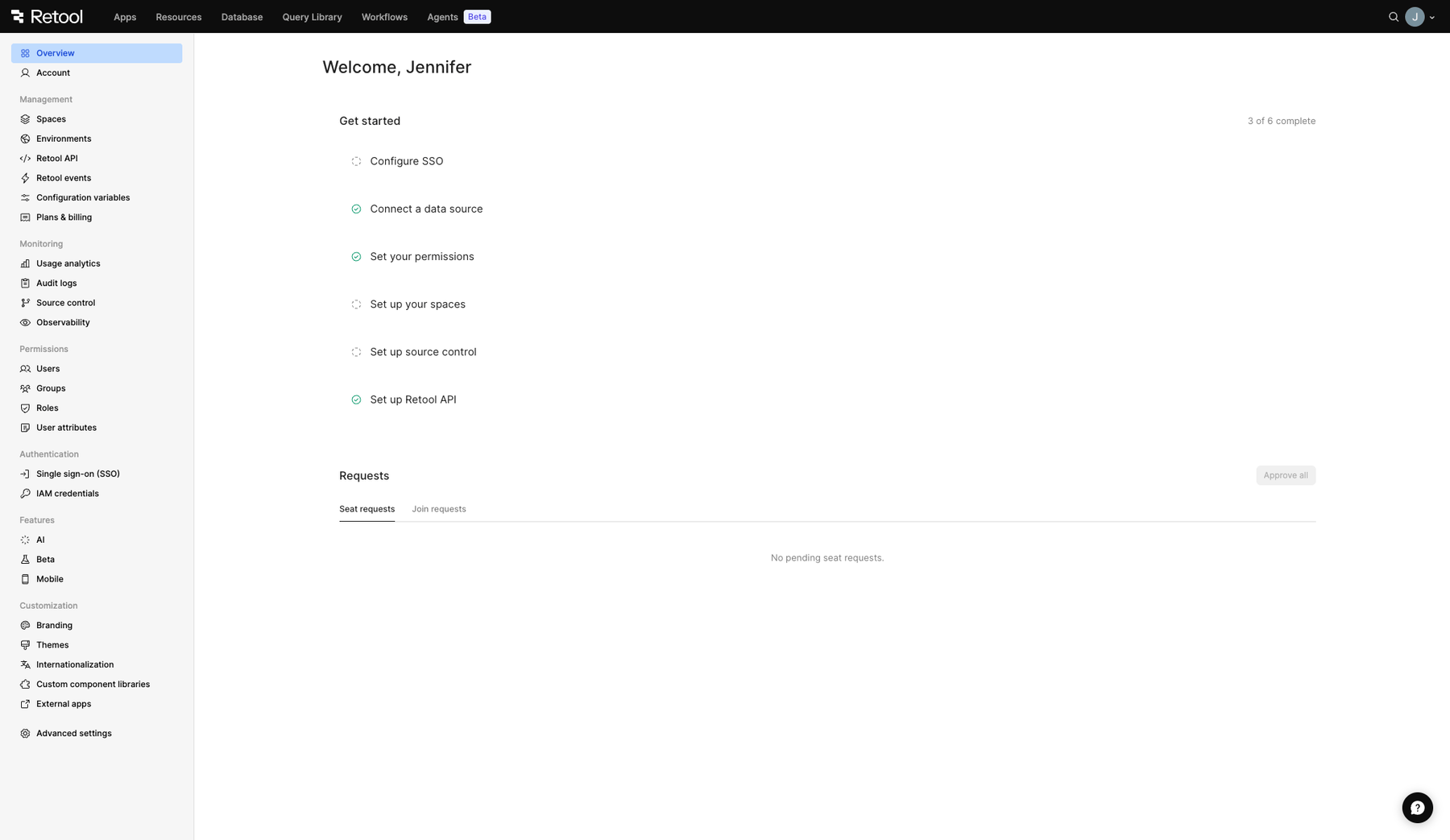
Settings navigation update.
Admins can now use the Overview page in Settings to set up their Retool organization and respond to pending user requests.
The Get started section guides you through configuring the core areas of your organization, including single sign-on (SSO), resources, permissions, spaces, source control, and the Retool API.
Retool marks each step as complete once you configure it, and you can mark any step that does not apply as not relevant. The module is hidden once you complete the Get started steps.
The Overview also surfaces pending join requests and suggested users, so you can approve new members without leaving the page.